If a remote control software you never installed suddenly appears on your desktop, in the system tray, or in "Programs and Features" (products like Sunlogin, ToDesk, RustDesk, and GotoHTTP have all been abused), the top priority is not to open antivirus software for a full scan, but to take these three steps:
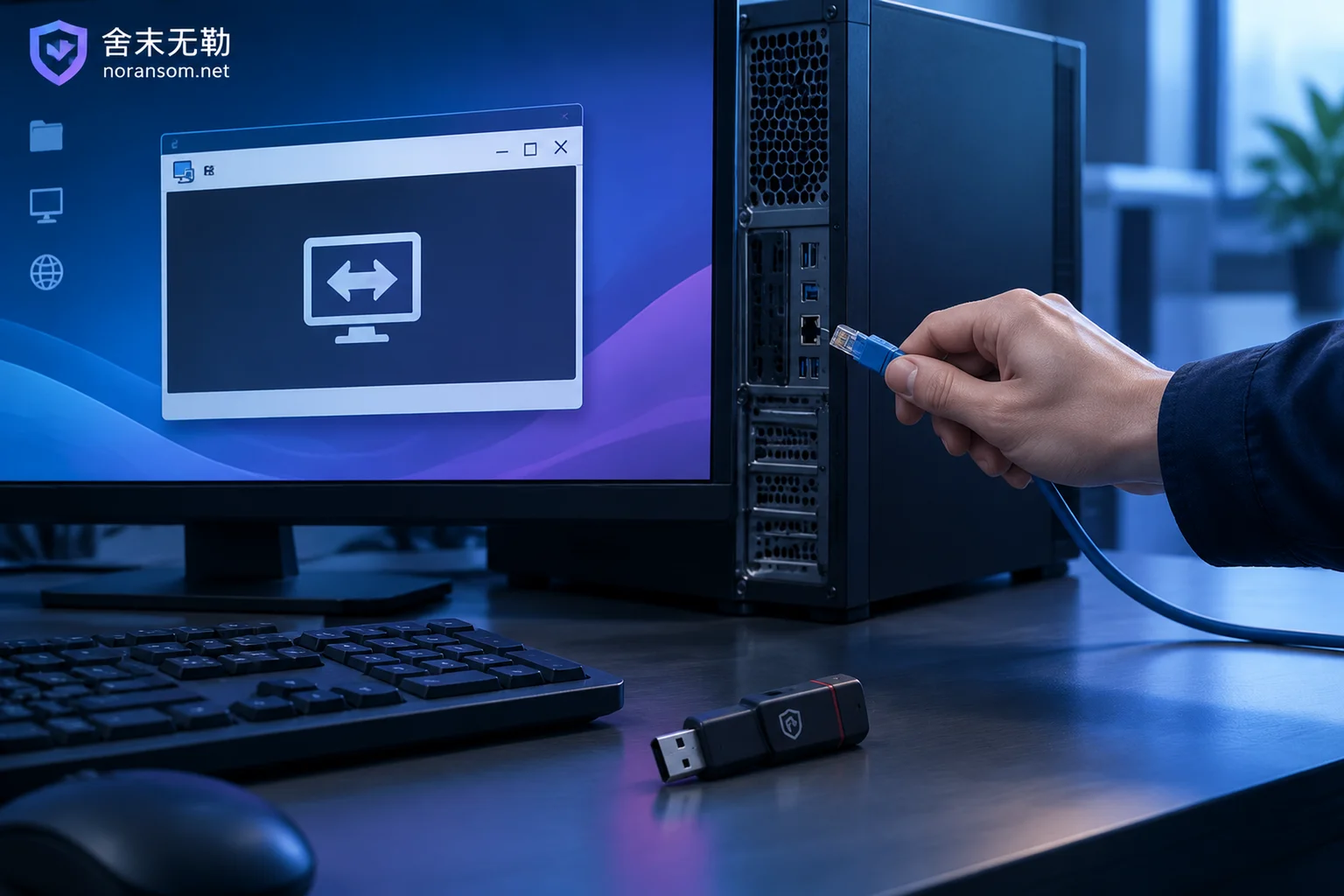
- Physically disconnect the network. Unplug the Ethernet cable, or completely turn off Wi-Fi using the physical wireless switch or system airplane mode. Simply clicking "Exit" or "Disconnect" in the remote control software is meaningless—the background reconnection processes and services are usually still running.
- If this is a computer used for finance, cashier, or online banking, immediately unplug all USB tokens/UKeys, card readers, and encryption dongles inserted in the machine. This step can be done simultaneously with network disconnection. When a USB token is inserted and in a logged-in state, the other party can initiate transfer authorization in a session you cannot see.
- Do not perform any "remediation" on this computer. Do not log into online banking, do not change passwords, do not log into WeChat/QQ, do not open cloud drives or corporate email, and do not use it to scan and confirm anything. Every character you type on it may be recorded.
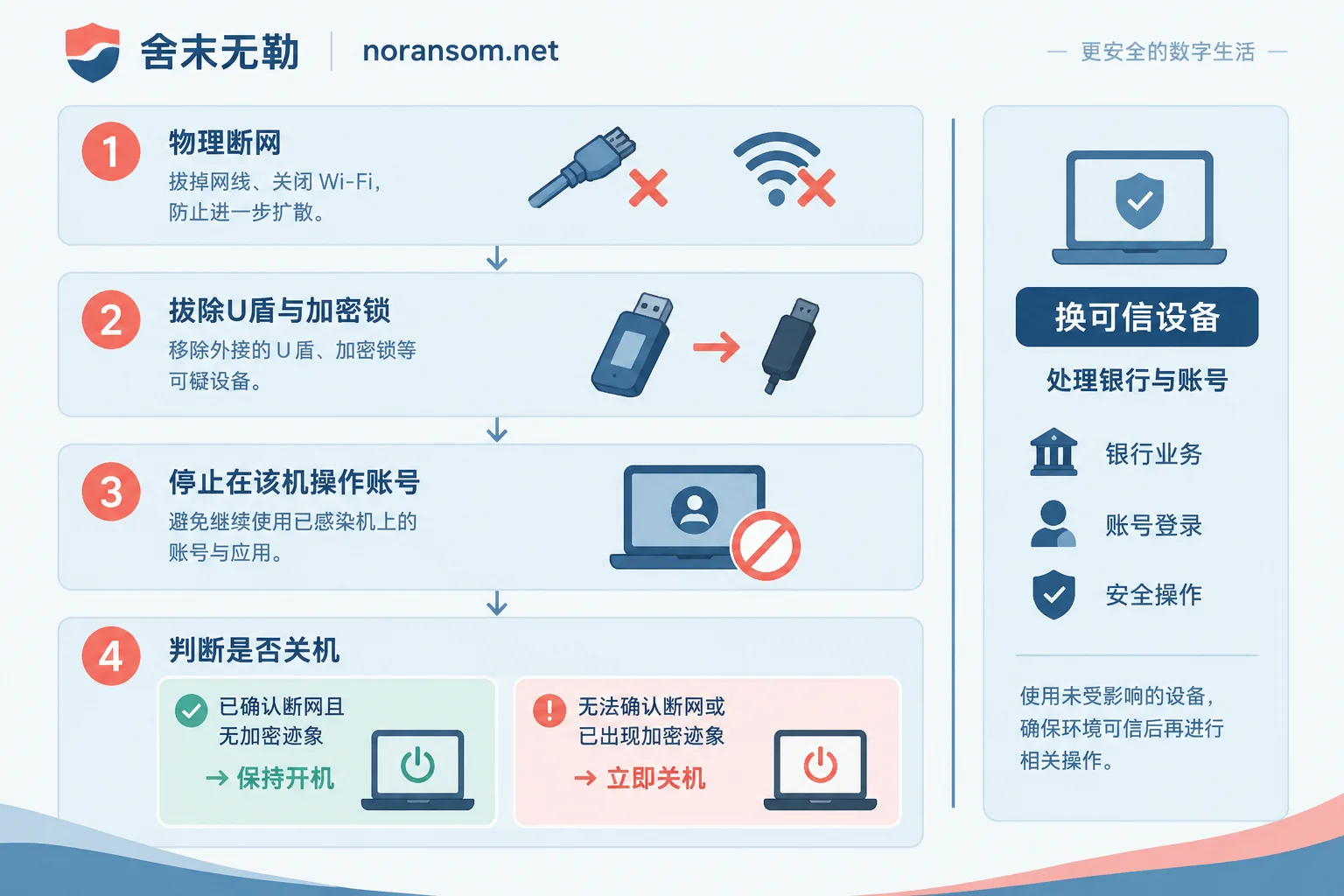
Shut down or keep it on? Look at two conditions
There is no one-size-fits-all answer. Judge by the following two points:
- You have confirmed physical network disconnection (Ethernet cable unplugged, wireless completely off, no 4G portable Wi-Fi or phone tethering connected), and files have not been batch-renamed, with no unknown extensions or ransom notes appearing: It is recommended to keep the computer on, stop all business operations, and wait for troubleshooting or forensic investigation. Malicious processes in memory, dynamically loaded code, and temporary network connections are basically gone after shutdown, making it much harder to later determine how the attacker got in and what they did.
- You cannot be sure whether it is truly disconnected (e.g., you don't know how many network cards the machine has, wireless auto-reconnects, or the device is in a server room you cannot access), or you have already seen files encrypted or massively renamed: Shut down immediately to stop the damage. Spread and continued encryption are more important than forensic clues.
First figure out who installed it, then decide how to clean it
Remote control software appearing automatically does not necessarily mean it is a trojan, but you also cannot assume it is normal. Three common sources should be verified separately:
- Installed by IT, a colleague, or an outsourcer during remote assistance, and not uninstalled afterward. A phone call to ask is the fastest way to rule this out, especially if the computer was recently reported for repair.
- Bundled installation when installing other software, common with "high-speed downloaders" from download sites.
- Silently installed via phishing files. Typical bait includes "disciplinary notices," "customer data," "invoices," or "financial reconciliation sheets" sent in group chats. After opening, you see no content, but the program installs remote control in the background and sets a fixed password.
Check these pieces of information to basically distinguish: the creation time of the installation directory and program files—does it match an operation you remember; whether the software has a normal interface and desktop icon, or is completely hidden and only visible as a process in Task Manager; and whether you have recently opened attachments or compressed packages from unknown sources.
In the remote control software's own interface, you can see a lot
If the remote control program can open normally, take screenshots first, then check these items (names and locations vary by product; some records are only stored on the vendor's server and are not visible locally):
- Whether unattended access / fixed access password has been enabled. Normal temporary assistance generally uses random verification codes; those turned into long-term backdoors will have a fixed password set.
- The local device ID, and whether there are any unfamiliar entries in the bound master account or trusted device list.
- Connection history: whether the timestamps correspond exactly to the period when you noticed the mouse moving by itself or windows popping up on their own.
These are direct evidence for judging whether "the other party just took a look" or "has already established long-term persistence," and are also materials needed for later police reports and internal explanations. After checking, do not rush to change passwords or unbind—operating on this already compromised machine, the other party may be watching.
Antivirus software not flagging it proves nothing
This is the easiest point to misjudge. In recent years, remote control trojans represented by the Silver Fox (Snake) family have extensively used legitimate remote software with valid digital signatures as landing tools, then used "white plus black" methods to load their own modules. Antivirus sees a normal remote control program with an official signature and does not alert by default; the real loader may be just a few dozen KB DLL hidden in a system process.
Therefore, "full scan found no threats" cannot be taken as the conclusion that "it has been cleaned." You need to manually check these locations for unfamiliar items:
- The file location of suspicious processes in Task Manager. Normal software runs in
Program Files, while persistent processes running inTemp,ProgramData, or randomly named folders under the user directory should be highly suspected. - Unfamiliar services with startup type "Automatic" in
services.msc; check the executable path they point to. - Newly created tasks in Task Scheduler, especially those with triggers "At logon" or "Every few minutes."
- Registry autostart entries in
Run/RunOnceand the Startup folder. - Newly added local accounts (especially those added to the Administrators group), whether Remote Desktop has been enabled and port 3389 allowed, and extra allow rules in the firewall.
Simply uninstalling the remote control client often leaves behind the bootloader and autostart entries, and it will install itself back after a while. "Cleaned but reappears" is almost always due to this reason.
Accounts and funds are a separate line and must be handled on a different device
Host cleanup and account damage control are two different things and cannot wait until the machine is fixed. Switch to an unaffected computer or use your phone to do these:
- Check bank account statements, transactions pending review and approval; apply to the account-opening bank to temporarily close the online banking payment channel or lower the limit. Call the bank's official customer service number; do not use a number found on that computer.
- Force log out other device login states for WeChat, QQ, corporate email, OA, finance and business systems, then change passwords. Doing it in reverse order is meaningless—the session is still there, and after changing the password the other party may still be online.
- Remind colleagues and frequently contacted customers: during this period, if they receive files, account change notices, or payment reminders from "you," verify in person or by phone. After stealing sessions, secondary delivery in group chats is the most common spread method for this type of trojan.
- If abnormal transfers or payments have already occurred: contact the bank immediately to follow the formal stop-payment process, and report to the public security organ, keeping transfer screenshots, system logs, remote control software connection records, and original phishing files. Whether funds can be recovered depends on the flow of funds and timing; anyone who promises certain recovery is not credible.
For specific accounts to change and the order, refer to Which account passwords need to be changed after discovering Silver Fox trojan and Handling order for WeChat and QQ accounts. If the symptom is the mouse being taken over and windows operating by themselves while antivirus is quiet, this symptom-based disposal order is closer to your situation.
If file extensions have also been changed
Then it is not just a remote control problem. File encryption is a different set of disposal logic: immediately stop writing to that disk, do not repeatedly try various decryption tools on the same batch of original files, do not format and reinstall, and do not upload encrypted files and ransom notes to unknown websites. First confirm the family and version to know whether there is a usable decryption path. This step can start from Ransomware family identification and recoverability assessment. Removing the virus and decrypting files are two completely different things; the former does not make the files recover by themselves.
Before reinstalling, preserve these
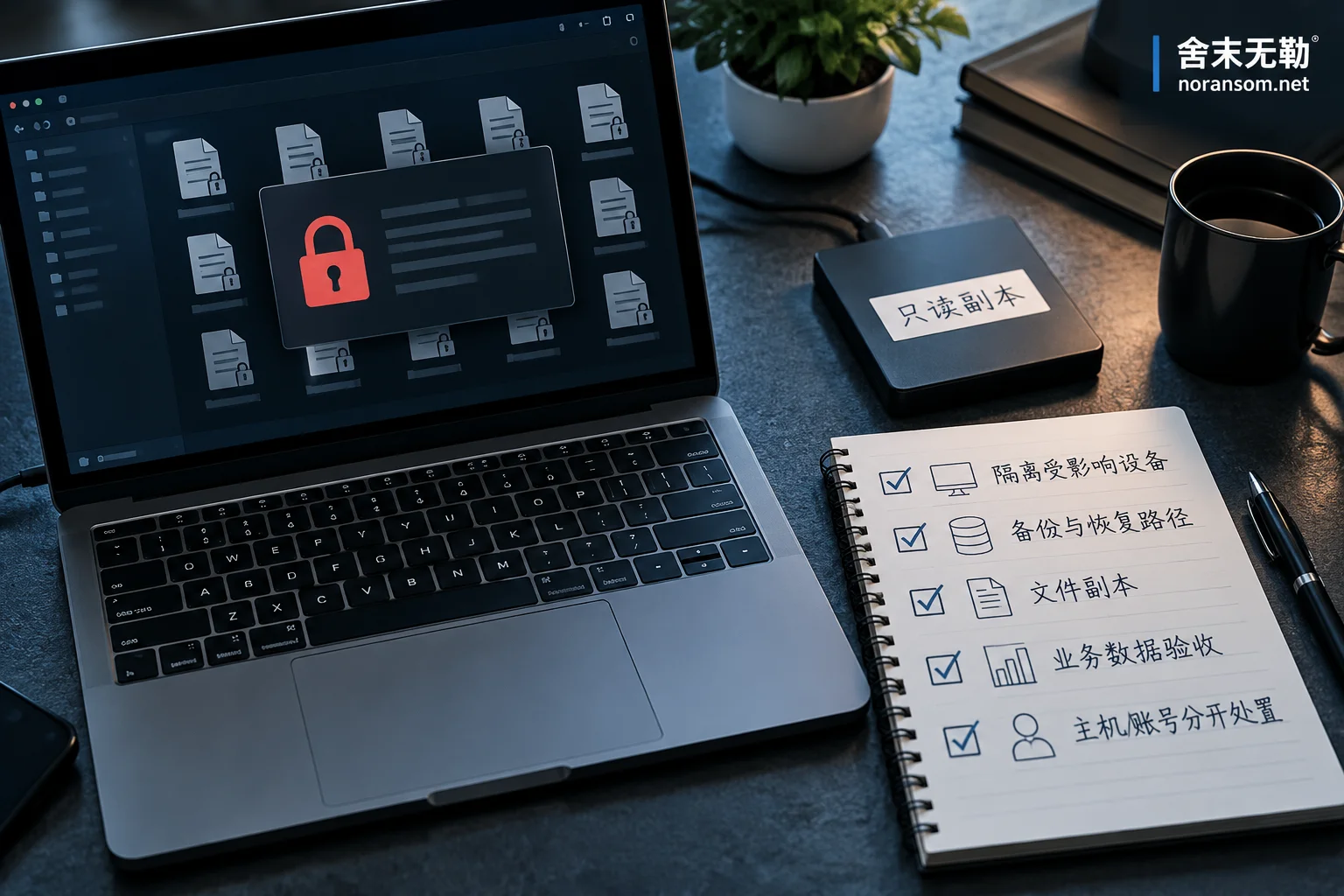
Many people's first reaction after discovering remote control is to directly reinstall the system. Reinstallation can solve host persistence, but it will also erase traceability materials—including the phishing file, the remote control software's installation directory and configuration, system and security logs, and abnormal login records. If financial loss is involved, you need to explain to the company or police, or other machines in the same network may also be infected, these materials cannot be recovered once deleted. Four types of things to keep before reinstalling lists them in detail; spend ten minutes reading before reinstalling.
When not to handle it yourself
For a single home computer, confirmed bundled installation, and no online banking or sensitive accounts, the above steps plus system reinstallation are usually enough. If any of the following occurs, it is recommended to seek professional assessment rather than continuing repeated scans yourself:
- Multiple machines in the same network all show unknown remote control or abnormal processes, or it is in a domain environment;
- The affected host is a server, database, or financial accounting system;
- Financial loss has occurred or accounts have been used to send messages externally;
- After one round of cleanup, unfamiliar services, scheduled tasks, or remote control programs come back on their own.
Such handling requires closing the three lines separately: host persistence, account sessions, and financial risk; a single scan cannot confirm. She Mo Wu Le provides specialized handling for Silver Fox and remote control trojans. For multiple affected machines and ongoing spread, follow the emergency response process: first assess the scope of impact, then determine the disposal plan. To communicate about specific incident details, you can explain the host role, discovery time, and actions already taken through the contact page—when submitting information, do not attach database files, customer data, production passwords, or executable malicious samples on public channels.


Comments(0)