On the screen, the mouse moves by itself, windows open, and when you try to drag it, it fights back—while a full antivirus scan shows "No threats found." This combination doesn't mean you're seeing things; it means the attacker's method simply isn't covered by signature-based scanning.
Follow this order now, and don't rush to run another scan:
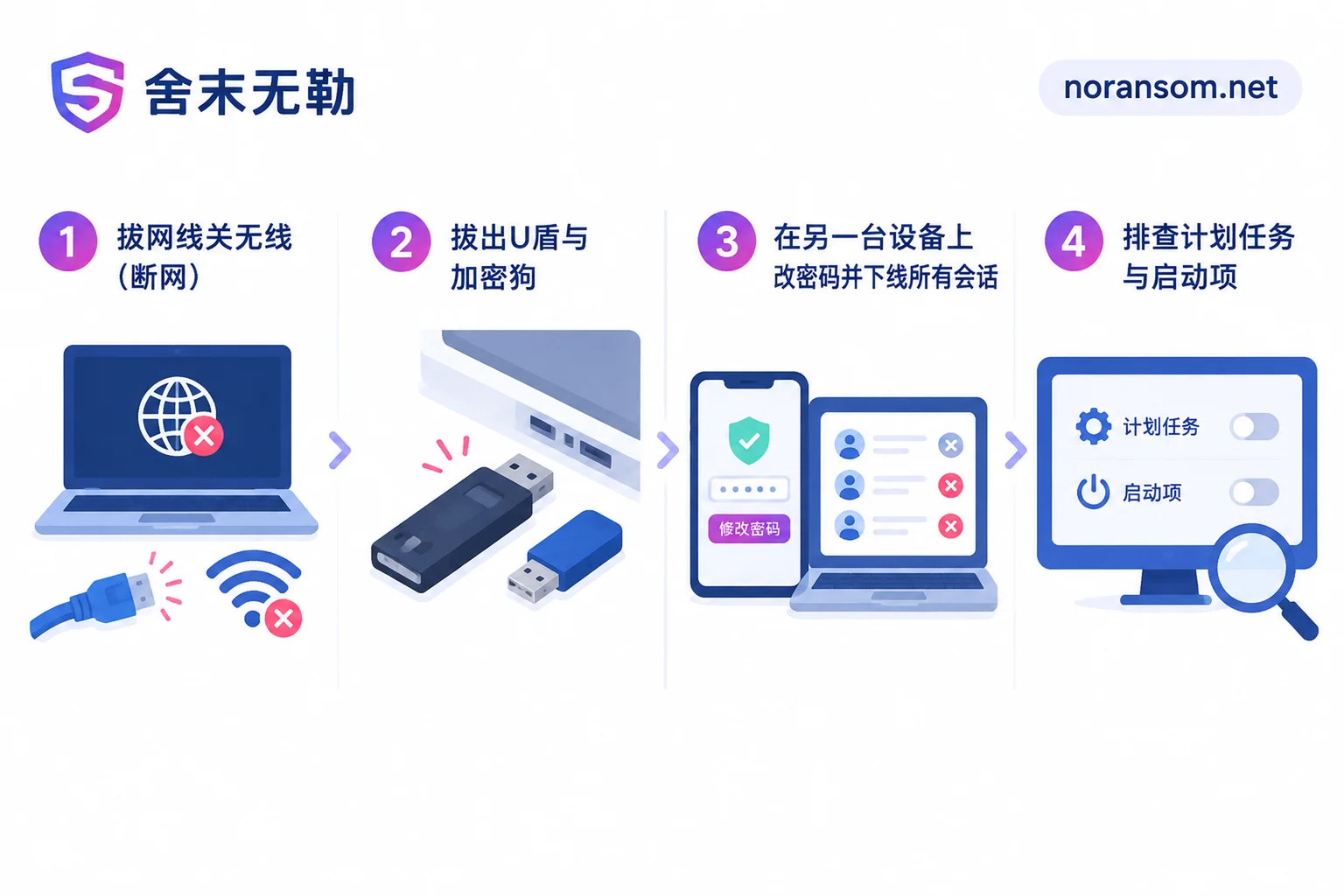
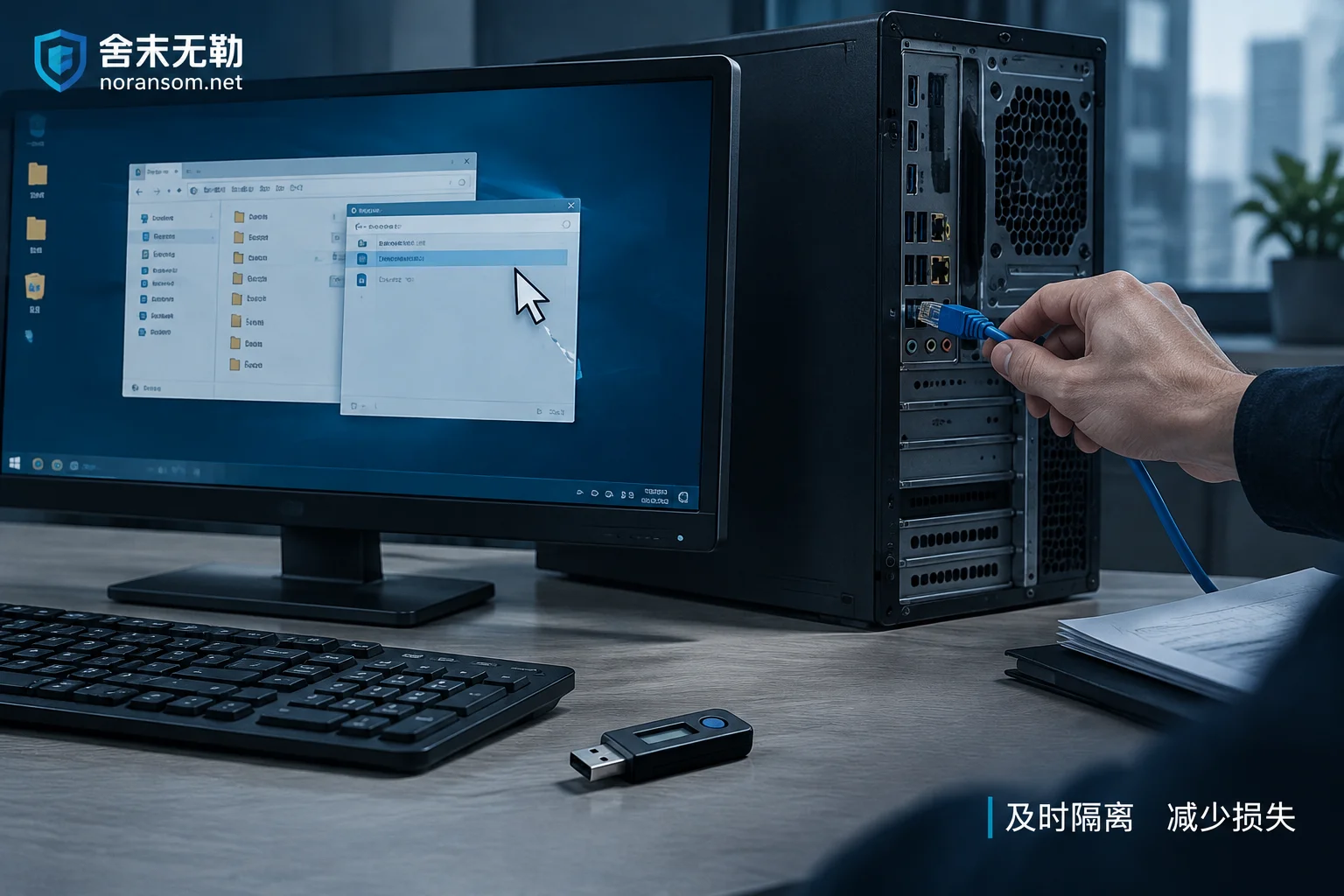
- Disconnect the network. Unplug the Ethernet cable, turn off the wireless adapter (on a laptop, use the hardware switch or airplane mode), and disconnect any mobile hotspots or USB-tethered networks. Remote control requires a network channel; cutting it stops the attacker immediately.
- Remove USB shields, banking dongles, and tax control disks. If these hardware devices are still plugged in and online banking or financial software is logged in, the attacker may directly initiate transfers or change payee information in the background.
- Handle accounts on another device. Do not change any passwords on this computer (more on this below).
After disconnecting, don't rush to shut down. Remote-access trojans differ from ransomware: they won't keep destroying files while you hesitate for a few minutes. The in-memory processes and current outbound connections are important clues to determine who the attacker is, how long they've been in, and what they've touched—shutting down loses them. Exceptions are two cases: you cannot confirm the network is completely cut (e.g., another network adapter exists, or this is a machine you're remotely logged into), and the machine also shows signs of file extensions being changed or ransom notes on the desktop—then prioritize cutting everything, and shutting down is acceptable.
Why antivirus says "normal"
No detection doesn't mean clean. Common reasons include:
- White-on-black (signed loader). Malicious code resides in a DLL loaded by a legitimate, digitally signed program. The antivirus sees a validly signed executable in a normal path and allows it by default.
- In-memory loading. The dropped file is just a tiny loader; the actual remote module decrypts and runs in memory, so no complete sample exists on disk to scan.
- Direct use of commercial remote software. Tools like Sunlogin, ToDesk, or RustDesk are legitimate software. When silently installed and configured to auto-start and accept connections without confirmation, antivirus won't flag them—they're normal office tools.
The "Silver Fox" (also called WinOS) trojan family, which has been rampant in China for the past two years, has used all three methods. Delivery is often via phishing links or group files disguised as notification documents, tax notices, or financial spreadsheets. But "mouse controlled + no detection" alone can't identify the specific family; how it got in and which remote channel it uses can only be determined by examining processes and outbound connections. This doesn't affect immediate damage control, only the later thorough cleanup.
Accounts and sessions: must be handled on another device
Such trojans typically include keylogging, screen capture, and browser credential theft. Changing passwords on the compromised computer is equivalent to sending the new password out again.
Do this on another computer or phone you're sure is clean:
- Change passwords for WeChat, WeCom, DingTalk, work email, online banking, financial software, and all admin panels. Treat any passwords saved in the browser as compromised.
- For each account, go to security settings and perform "Log out of other devices / Terminate all sessions." Changing passwords without kicking sessions may leave the attacker's logged-in state valid.
- Prioritize WeChat and WeCom. Office accounts logged in on the compromised computer are often used to impersonate you and send transfer or payee-change instructions to finance or subordinates—this channel is more valuable than the computer itself. For specific steps, see "How to handle WeChat and QQ accounts after a Silver Fox trojan" and "Which account passwords need changing after discovering a Silver Fox trojan".
- Enable two-factor authentication, and notify finance and close colleagues: from today, any payment or account-change request from this machine is invalid; verify by phone or in person.
If abnormal transfers or suspicious logins have already occurred: immediately contact your bank to freeze or stop payments, and report to the police, keeping screenshots of transfer records, chat logs, and abnormal login alerts. Whether funds can be recovered depends on time and the other party's speed; no one can guarantee the outcome, but delay is always worse. For specific steps on a finance computer, see "What to do about online banking after a Silver Fox trojan on a finance computer".
A few places worth checking on the host
With the network disconnected, do a rough check—not to "clean thoroughly," but to gauge the depth of the problem:
- Task Manager: Look for unfamiliar remote-control processes or system processes with the same name but strange paths (e.g., a program that should be in System32 running from a user directory).
- Installed programs and services: Any remote-desktop software you didn't install. They're often configured as silent services with no tray icon.
- Task Scheduler: Malicious scheduled tasks often masquerade as "compatibility check" or "system update," triggered at logon or every few minutes. This is the main cause of recurrence after reboot.
- Startup items and registry Run keys, as well as directories like
C:\Users\Public,C:\ProgramData, andC:\Program Files\Internet Explorer\commonly used to hide launchers, to see if new files appeared recently.
If you find something suspicious, take a screenshot and note the path before deciding to disable it. Deleting only the visible exe while leaving scheduled tasks and services will likely bring it back after reboot—this is where many people get stuck in "cleaned but controlled again."
If you use a specialized removal tool, scanning in Safe Mode with the network disconnected is more meaningful than repeated full scans in normal mode. But understand its limits: for cases already loaded via signed files or abusing legitimate remote tools, a "no threat" result still proves nothing.
When you can't just rely on antivirus removal
In the following cases, treat the machine as no longer trusted: back up pure data and reinstall the system rather than cleaning and continuing to use it:
- The computer is used for online banking, has had a USB shield inserted, or stores Kingdee/Yonyou accounting data or customer information;
- Antivirus has been disabled, security center settings changed, or exclusions added to Defender;
- After one cleanup, symptoms reappear after reboot.
Another situation you shouldn't handle alone: the computer is in a corporate LAN with servers, NAS, or shared drives nearby. Remote control gains a foothold; next steps often involve harvesting domain credentials, scanning the intranet, and moving to file servers. What's needed is a network-wide investigation of outbound connections and lateral movement, not just fixing this one machine. If multiple machines show anomalies simultaneously, or someone reports shared drive files inaccessible, treat it as an ongoing incident; see emergency response when multiple machines are affected.
Also note: mouse control and file encryption are two different problems. If during investigation you find file extensions changed and files won't open, that's a ransomware incident with completely different handling—do not repeatedly run various "decryption tools" or recovery software on the original disk; preserve the state first and then assess recoverability.
When to call in professionals
What you can do yourself ends at "disconnect, secure accounts, glance at persistence." Going further requires process behavior analysis, network tracing, and log timeline comparison to answer three questions: when did the attacker get in, what else did they touch besides this machine, and are there still undiscovered backdoors. Without resolving these, reinstalling the system only postpones the problem.
If the affected machine is a finance or management computer, or connected to a production intranet, refer to Shemowule's Silver Fox and remote access trojan handling guide to see what information you need to provide. If the incident is ongoing and you're unsure whether to shut down, describe the situation via the contact page for a judgment. Note that removing the remote-control program and recovering accounts/funds are two separate matters; the former is doable, the latter depends on how quickly you cut the channel and contact the bank and police.
After returning to normal
Once reinstalled or cleaned and confirmed no abnormal operations after reconnecting, follow up with these: reset all account passwords in the new environment and enable two-factor authentication; keep financial and online banking operations on a dedicated machine that doesn't receive email or install unrelated software; restrict direct connections from employee machines to server ports in the corporate intranet, manage remote tools centrally, and prohibit casual installation; treat group files and external links like "notifications," "notices," or "statements" as do-not-click by default—if you must view them, have the sender explain in the group first.
The minutes of being controlled are uncomfortable, but the critical window for response is actually the hours after disconnecting—reclaiming accounts, cutting off fund channels, and confirming no one followed into the intranet. That's where losses basically stop.


Comments(0)