There are four categories of things to take with you before reinstalling: forensic materials that show how you got infected, business data that has been filtered clean, a list of accounts that need immediate loss control, and the people who may have been infected while the Trojan was active. Only the second category is an actual "file copy" — the other three are records and tasks to be done on other devices.
Before any of these actions, disconnect from the network first.
Disconnecting Comes Before Any Copying
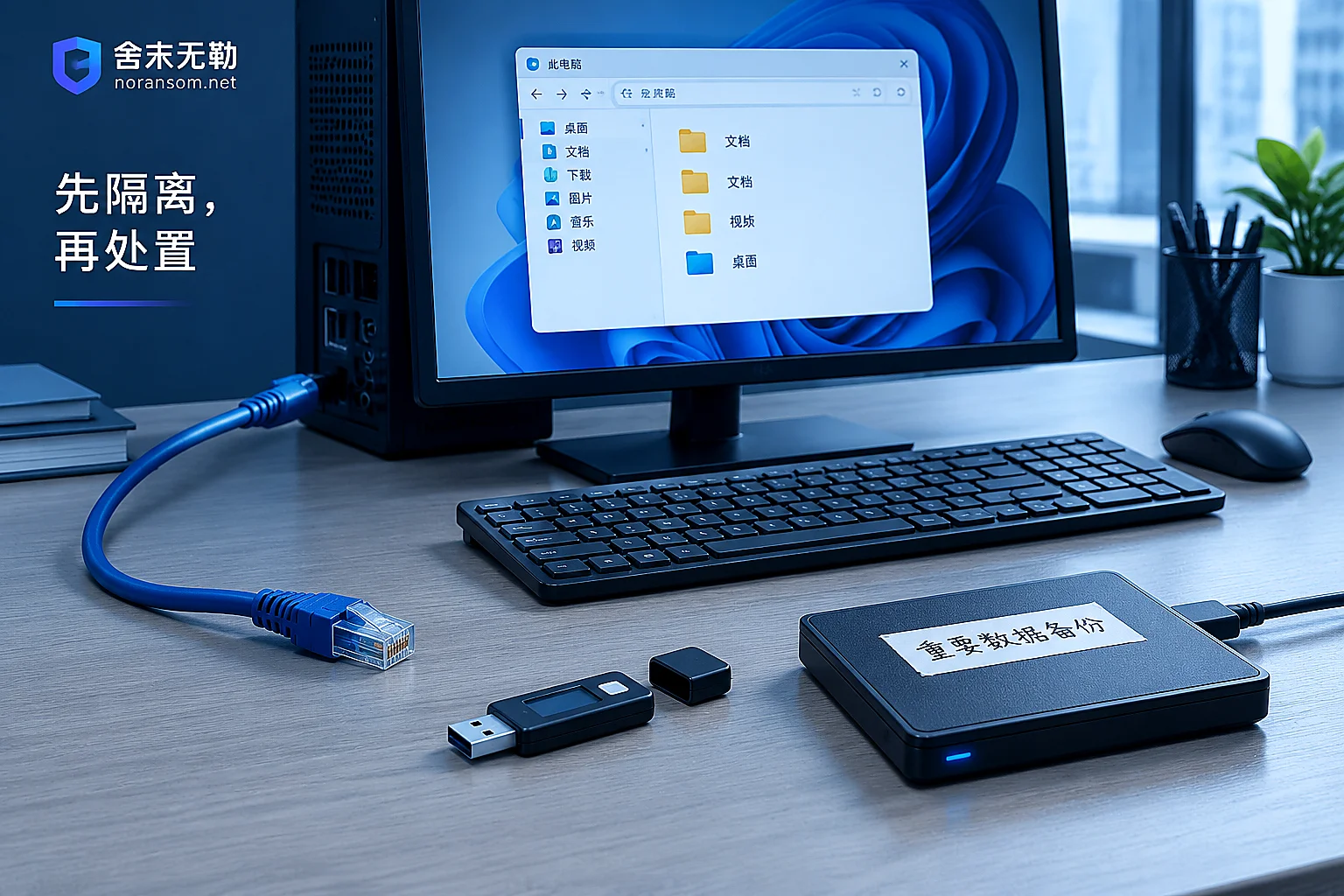
If you have confirmed or strongly suspect a Silver Fox infection, the first step is to unplug the network cable, turn off Wi-Fi, and remove online banking USB keys and dongles. Cut both wired and wireless — don't just disable one.
The reason is straightforward: while the Trojan is still connected to its command server, everything you do — plugging in an external drive, opening accounting software, logging into online banking — is visible to the attacker. They can even wipe the dropped files and logs before you act, which is exactly the evidence you need to preserve. After disconnecting, you can take your time organizing; there's no need to rush.
If this machine also shows files that won't open, changed extensions, or ransom note text, then it's not just Silver Fox. In that case, do not format any partition. Once encrypted files and key remnants are overwritten by a reinstall, a lot of useful diagnostic material is lost. You can first check https://noransom.net/blog/48.html before deciding whether to touch the disk.
1. Forensic Materials: Gone Once You Reinstall
Formatting the system drive takes the attack chain traces with it. If you later need to assign responsibility, report to police, or find out who got in and when, extract these first:
- The original lure file. Disguised as tax notices, invoices, subsidy applications, disciplinary notices — .exe, .msi, .zip, .lnk files — copy them out along with their containing folder. Do not double-click or extract them; put them in a password-protected archive and label the filename "sample — do not run".
- Where the file came from. Group names and IDs, sender accounts, original emails, cloud drive links, screenshots forwarded by colleagues. The file itself often doesn't reveal the propagation path, so this part relies on human recollection.
- Windows event logs. Copy the entire Logs directory under
%SystemRoot%\System32\winevt\Logs— Security.evtx, System.evtx, Application.evtx, etc. Logs have size limits and roll over, so the earlier you copy, the more complete they are. - Suspicious persistence traces. Screenshots of startup entries, scheduled tasks, and services; screenshots of abnormal processes and outbound IPs; and full path records of the directories you suspect (commonly garbled or look-alike folders under the user directory or ProgramData).
- Impersonation records. Scam messages, transfer requests, and files sent from your account on WeChat, QQ, or WeCom, along with recipient information — screenshot and save these with timestamps.
If financial loss has occurred or you suspect data was exfiltrated, do not rush to reinstall. A safer approach is to keep the original hard drive intact and install the system on a new drive, or have a professional make a bitstream image before doing anything. At the same time, use the bank's official loss-report and freeze channels and the police reporting channels, and prepare the above materials into a complete incident record — whether funds can be recovered doesn't depend on how much material you kept, but incomplete materials will leave you in a weak position for reporting and assigning responsibility.
2. Business Data: Carry by Whitelist, Don't Package the Whole Disk
The biggest risk here isn't missing files — it's copying the Trojan into the new system along with your data.
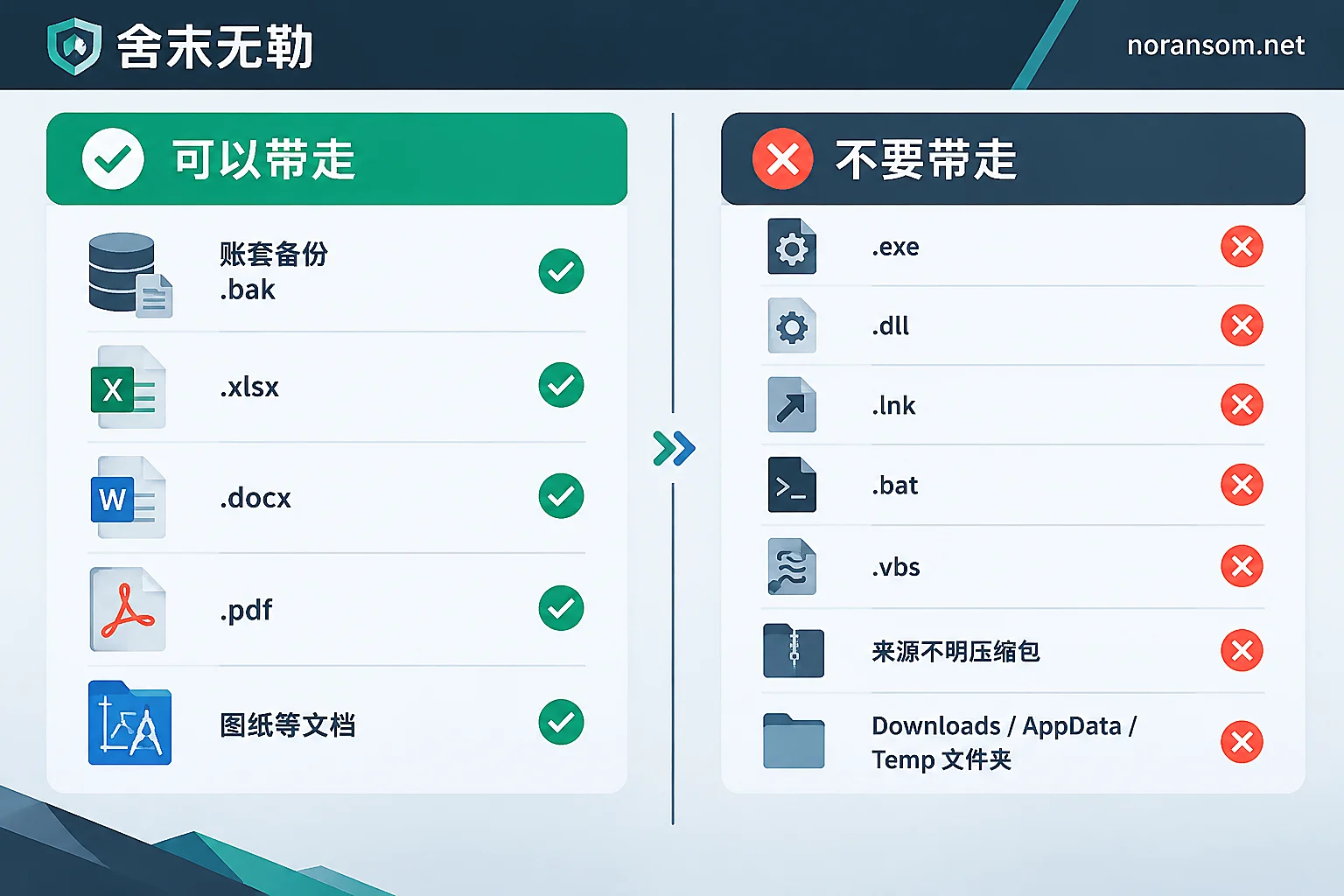
What you can carry: financial accounting software backup files (.bak and similar database backups), pure documents (.xlsx, .docx, .pdf, .txt), images, drawings, audio/video, and separately exported email data.
What you should not carry:
- Any executable files and scripts: .exe, .dll, .msi, .bat, .cmd, .vbs, .ps1, .scr
- Shortcut files .lnk (one of Silver Fox's common drop forms is a shortcut disguised as a document)
- Encrypted archives of unknown origin
Downloads,AppData,Temp, and the Startup folder — do not copy these directories wholesale; pick out specific files individually when needed- Browser password export files. These credentials should be considered already leaked — reset them directly and don't import them back into the new system
After exporting, don't plug the external drive directly into a colleague's normal work computer. First, on a controlled, fully patched machine, enable "show file extensions" and run a full scan on the drive, focusing on double-extension files like "report.xlsx.exe".
For local accounting software like Kingdee or Yonyou, check which version and deployment method you're using — offline backup methods vary greatly between versions, and running "repair" or "rebuild index" operations on an infected machine is not advisable. When unsure, the safer approach is to copy the data file directory as-is and leave the judgment for later in a clean environment.
3. Account List: Reinstalling Can't Handle Cloud Sessions
This is where many people run into trouble again after reinstalling. What Silver Fox steals is credentials and sessions, not just a local backdoor file. Reinstalling only clears the local persistence — the attacker's sessions and passwords are still valid.
Before reinstalling, make a list of all accounts that were logged in on this machine, and treat them all as "compromised" by default:
- Instant messaging: WeChat, WeCom, DingTalk, QQ
- Email, especially the one bound to business approvals
- Financial and business systems: ERP, Kingdee/Yonyou, electronic tax bureau, invoicing software, reimbursement systems
- Online banking, corporate online banking, payment platforms
- SSH/RDP passwords for servers and network devices, VPN, remote administration tools
- All website passwords saved in the browser
The list can be made on this machine, but passwords must not be changed on this machine. A Trojan with keylogging and memory-scraping capabilities will capture your new passwords too. Changing passwords, forcing logout of historical devices, and enabling two-factor authentication must all be done on a confirmed-clean computer or phone. Online banking digital certificates and USB keys need to be revoked through the bank and reissued. For which accounts to change and in what order, see https://noransom.net/blog/50.html; for handling chat accounts specifically, see https://noransom.net/blog/62.html.
4. Spread Scope: Who Did Your Account Send Things To?
Silver Fox uses the communication software on a controlled computer to automatically forward Trojan archives to friends and work groups. Reinstalling wipes the sending records on this machine, so first verify: during the Trojan's active period, which contacts and groups were sent files or links.
Write down this list and notify those people as soon as possible — tell them to disconnect from the network first and then investigate, not just "run a virus scan". Other terminals on the same LAN, shared drives, and servers with the same passwords should also be checked. This type of Trojan rarely lands on only one machine.
Cases Where You Should Not Reinstall on Your Own
In the following situations, the benefit of reinstalling is far less than the risk. It's better to stay in a disconnected, preserved state first:
- Abnormal transfers or payment approvals have occurred, or you suspect customer data or accounting records were exfiltrated
- More than one machine is infected, or servers, domain controllers, or shared drives also show anomalies
- You need to assign responsibility, report to police, or provide an incident explanation to headquarters or clients
- Files are also being encrypted
- This machine is the only one holding accounting records or business data, and there is no usable backup
In these scenarios, what to preserve and in what order is different from reinstalling a single office computer. If you're in one of these situations, you can first check https://noransom.net/ransomware/silver-fox/ to determine how deep the investigation needs to go. If it has already spread across multiple machines and people are being continuously affected, https://noransom.net/services/incident-response/ is more appropriate.
Two Things to Watch After Reinstalling
After the new system is installed, patches applied, and all passwords changed, import the filtered data back. Over the next week or two, watch for two signals: whether this machine makes abnormal outbound connections to unknown addresses, and whether any accounts show unusual login alerts from other locations.
A clean antivirus scan does not mean you're clean — many Silver Fox variants use normally signed programs to load malicious components, and this combination often shows all green in scan results. What truly indicates the problem is resolved is: outbound connections have stopped, accounts show no new abnormal logins, and other machines on the same network segment show no new alerts. For situations where the mouse still moves on its own or the screen is taken over but antivirus shows nothing, see https://noransom.net/blog/66.html.


Comments(0)