Nothing happened after you opened a suspicious attachment — that is not evidence of good luck. On the contrary, it is exactly how most phishing attachments behave today. So you still need to check, and there are two things you should do within the next ten to fifteen minutes:
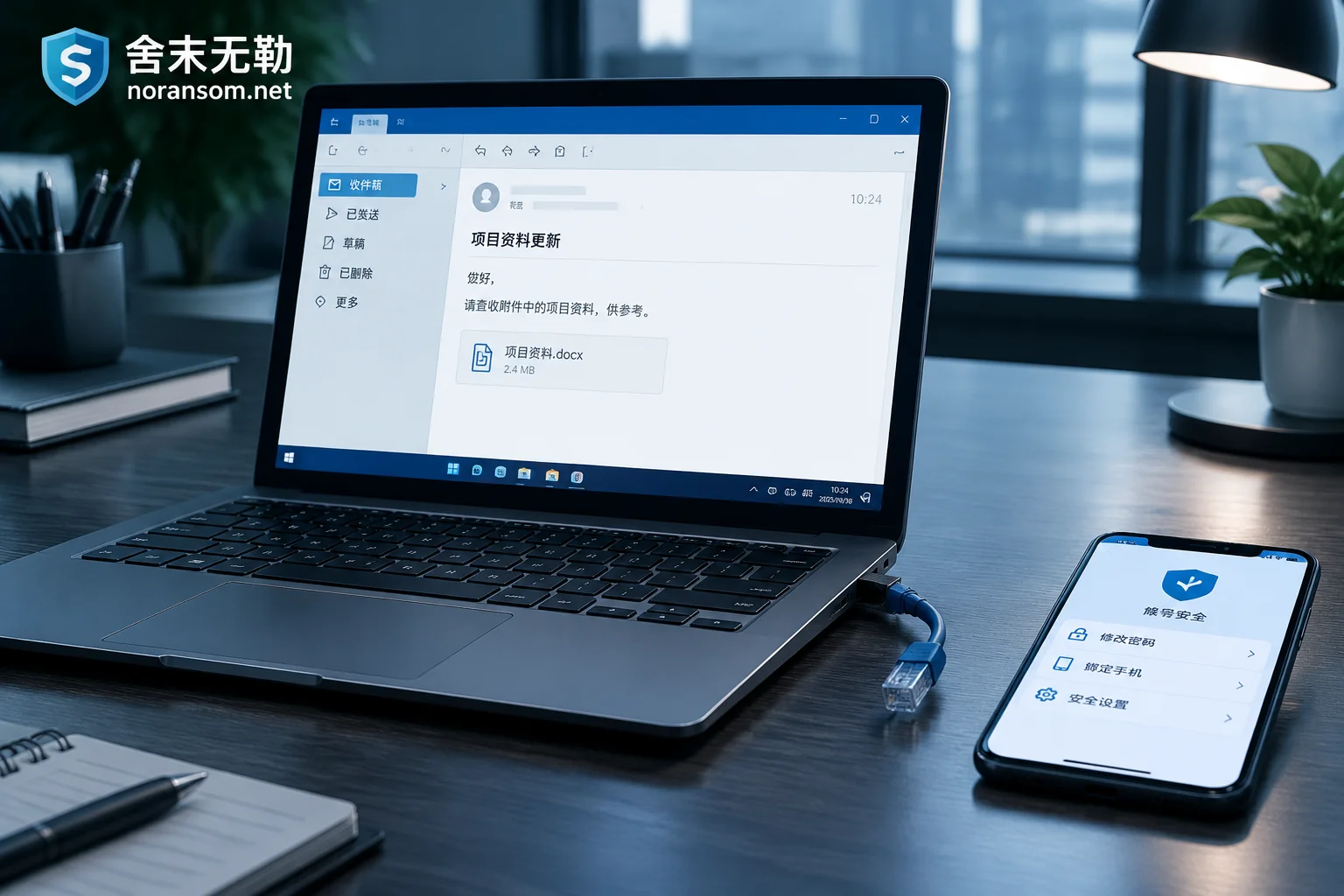
- Disconnect this computer from the network — unplug the Ethernet cable and turn off Wi-Fi (not just log out of chat or browser apps).
- Switch to a device that has never touched this attachment, change the passwords for the critical accounts that were logged in on this machine, and revoke all active sessions.
Do these two things first, then investigate at your own pace. The order matters: investigation takes time, while a program already running in the background can call back to external servers, upload credentials, and download the next-stage payload in seconds.
Why “no popup, no lag” proves nothing
- The lure is designed that way. Many deliveries will open a document that looks perfectly reasonable, or show a “file is corrupted / incompatible version” message, while silently dropping the real payload in the background. Executables disguised as PDFs, folders, or shortcut icons fall into this category too.
- Silent persistence is the goal. Write a startup entry, connect to a remote-control channel, and then do nothing while you keep working normally. Screen monitoring, keylogging, and reading chat logs don’t require any notification to you.
- No antivirus detection does not mean clean. Currently active remote access trojans like SilverFox often use digitally signed programs to load malicious modules, inject into system processes such as explorer.exe, and load in multiple stages, making static signatures easy to bypass. A detection is evidence of a problem; no detection is not a conclusion that there is no problem.
The same logic applies to ransomware incidents: encryption is usually not the first step. What comes in first is often a tiny loader that gains privileges, maps the network, and locates backups and servers before acting. The fact that no files were renamed with a new extension on the day you opened the attachment only means it hasn’t reached that stage yet.
Recall three things first — they determine how deep you need to check
One, what exactly was the attachment. A macro-enabled Office document, an .exe inside a zip archive, a .lnk shortcut, a .js/.vbs script, a double extension (e.g., statement.pdf.exe) — each carries a different level of risk and requires a different investigation direction. If the original file is still available, don’t delete it and don’t forward it to a colleague “to take a look.” Store it separately in a compressed archive and provide it to the incident handler if a determination is needed.
Two, did you ever see the “Do you want to allow this app to make changes to your device” (UAC) prompt, and did you click it? If you clicked “Yes,” it means the program may have gained administrator privileges, could install services, write to system directories, and modify security software settings — the investigation scope expands to the system level. If it only ran with standard user privileges, persistence locations are usually concentrated in the current user’s directories.
Three, whose computer is this. A machine used by finance, cashier, executive, or IT admin staff has a completely different handling priority compared to an ordinary front-desk PC. For admin machines, you also need to check what server, database, and VPN credentials it has stored.
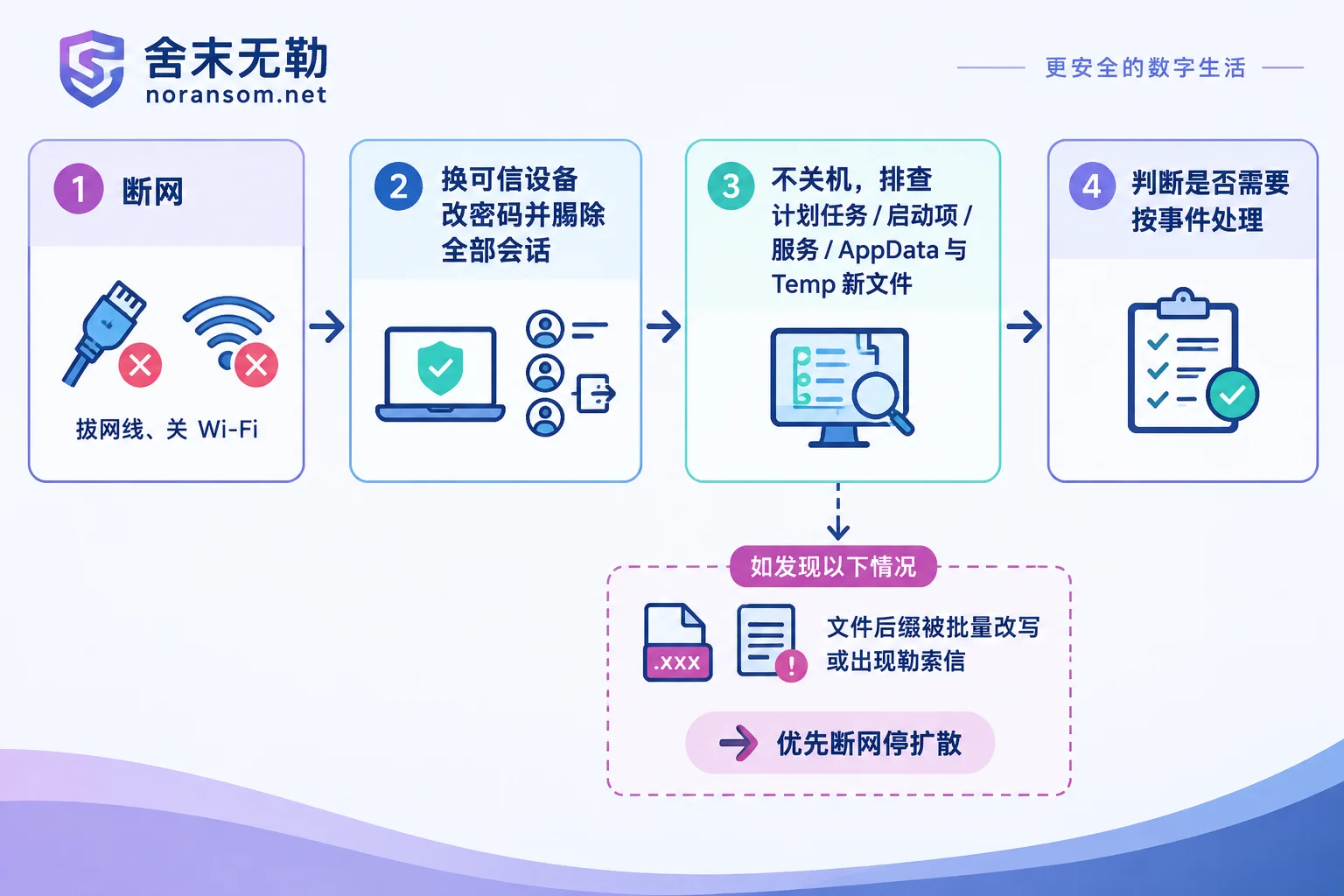
After disconnecting, follow this order
Don’t rush to reinstall, and don’t just run a full scan, see no threats, and keep using it.
Preserve the scene; do not shut down or restart for now. There are no encrypted files visible on this machine yet, and the processes in memory, current network connections, and files in temp directories are valuable for determining whether you are compromised, what it is, and where it connects. A shutdown wipes that away. The exception is clear: if you see file extensions being mass-renamed, ransom note text appearing on the desktop or in folders, or files on shared drives changing one by one, then stopping the spread takes priority over evidence collection — disconnect immediately and consider cutting power, then handle it as a ransomware incident. For how to tell if it’s ransomware, see How to tell if unfamiliar file extensions mean ransomware; if the attachment was a disguised invoice or statement email, What to do if your computer seems infected after opening a fake invoice attachment explains how to distinguish remote access trojans from encryption.
Handle your accounts on another trusted device. Rough priority: email → WeChat/DingTalk/WeCom → online banking and payment → OA, ERP, Kingdee, Yonyou, and other business systems → remote desktop, VPN, server, and database passwords (if stored or logged in on this machine). While changing passwords, also perform “sign out of all devices / end all sessions” — because if login tokens and cookies have been stolen, changing the password alone may not kick the attacker out. Enable two-factor authentication wherever possible.
Check persistence locations, not just “whether there is a virus.” Keep the network disconnected and check these yourself:
- Scheduled tasks (taskschd.msc): sort by creation time and look for tasks created today that point to user directories or script interpreters.
- Startup items: Task Manager’s Startup tab, the
shell:startupfolder, and registry Run/RunOnce keys. - Services (services.msc): entries whose executable paths fall under AppData, Temp, or ProgramData.
- User directories AppData\Roaming, AppData\Local, Temp: sort by modification time and look at what was created around the time you opened the attachment.
If you find suspicious entries, note the full path and name but do not rush to delete them one by one. Deleting a startup item can easily make you think it’s over, while multi-stage persistence often reinstalls itself.
Check for signs it has already been used. Look in WeChat and DingTalk for files or links you did not send; check email for unknown forwarding rules and sent items you don’t recognize; check online banking and payment accounts for unusual logins or transactions.
When you can close it out yourself, and when you need a full investigation
Typical cases you can close yourself: the attachment was a plain document, confirmed to have no macros or embedded objects, no privilege escalation prompt appeared, none of the persistence locations above had new items created that day, and this machine has never stored server or financial credentials. Updating the system and security software, changing critical passwords on a trusted device, and watching for anomalies over the next week or two is usually enough.
Situations where a full investigation is recommended and you should not rely on a standalone scan:
- A finance or cashier computer, or one with online banking USB keys or payment approval authority. These roles are often targeted, and the attacker will stay silent, observe your transfer procedures and communication habits, then pick a moment to impersonate or hijack sessions. In that scenario, whether to cut off the money channel first or scan first is covered more specifically in Finance computer infected with SilverFox trojan — what about online banking?.
- You saw and accepted a UAC prompt, or you used an admin account on this machine to connect to a domain, server, or database.
- You already see suspicious persistence items, abnormal outbound connections, or your antivirus has detected something (regardless of whether it says “cleaned”).
- The same email went to multiple people, a second machine is already showing anomalies, or the machine is on an internal network with a domain controller and shared drives. This is an incident to be handled as such; standalone antivirus cannot fix it.
For why remote access trojans require separating host remediation from account and financial risk, SilverFox and remote access trojan risk handling provides the corresponding guidance; if you have already run a scan and want to confirm whether this machine can still be used for finance or admin roles, see Can a computer still be used after removing the SilverFox trojan?.
If abnormal transfers have already occurred, or someone is impersonating your staff and demanding payment: in addition to technical handling, report to your bank through official channels and file a report with the police as soon as possible. Preserve the original email, chat records, transfer receipts, and any anomalous traces on the machine. Whether funds can be stopped depends on timing and the bank’s procedures; no one can promise recovery.
About “if nothing happens for a few days, am I safe?”
No fixed number of days can give you that conclusion. Silent dwell time of weeks before action does happen. The only basis for confidence is the investigation result: persistence locations clean, no abnormal outbound connections, all account sessions reset, and critical credentials changed on a trusted device. Once those are done, close off the remaining gaps by patching office endpoints, enforcing macro policies (disable macros from network locations by default), and restricting email attachment types. Only then is the matter closed.
If you run into something uncertain during investigation, or the machine touches servers, databases, or financial systems, keep the scene disconnected as-is and seek help rather than deleting and testing on your own. For specific judgment, provide information according to Contact and data submission instructions. Note: do not post database files, customer data, production passwords, or suspicious executables in public comment sections or any upload site.


Comments(0)