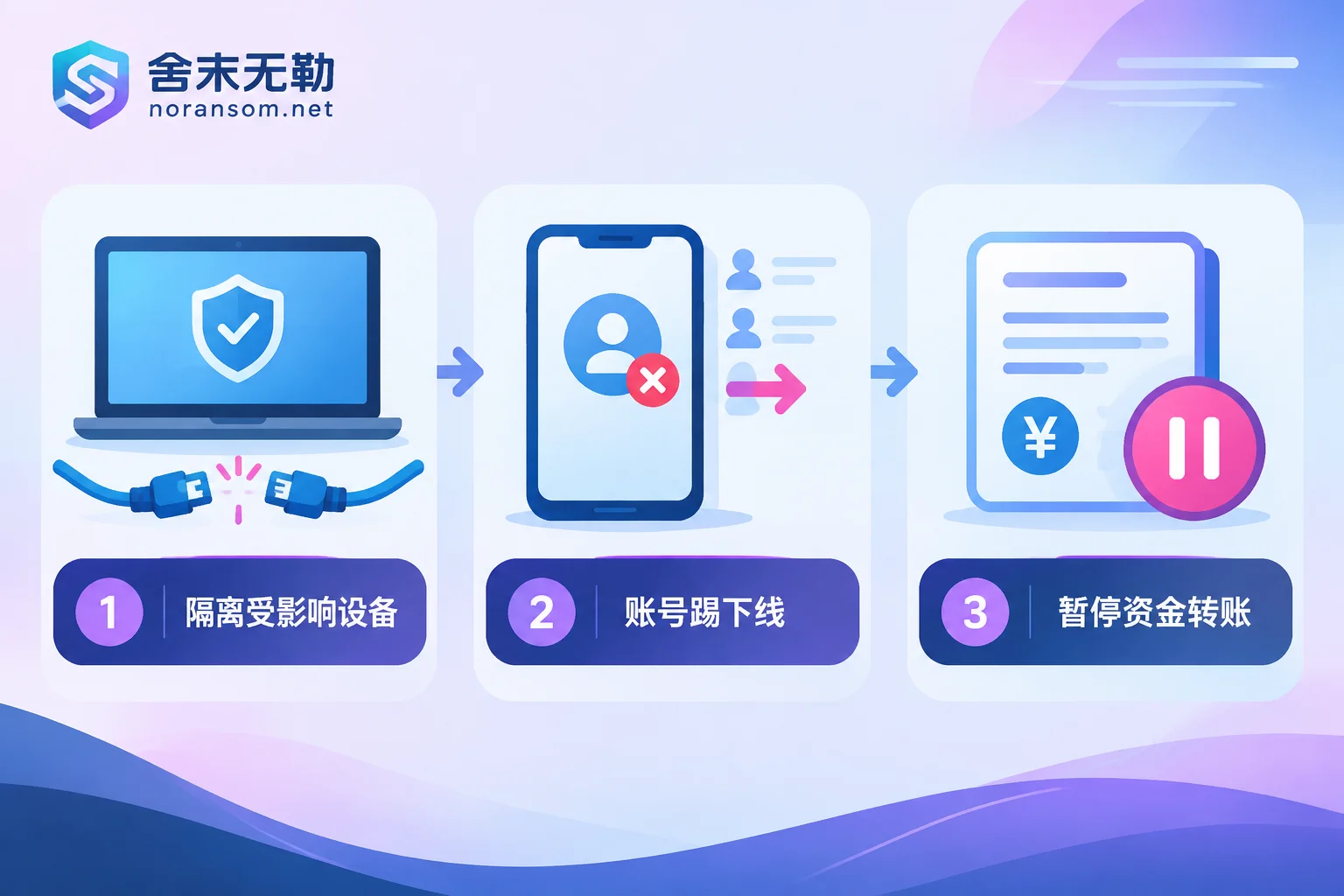
If you just downloaded an installer from search results (WeChat, WeCom, DingTalk, WPS, input method, decompression tool, or some AI client), and after installing it you experience crashes, the mouse moving on its own, strange pop-up windows, unusual files appearing in the installation directory, or you simply feel something is off—the three most important things to do right now, in order, are:
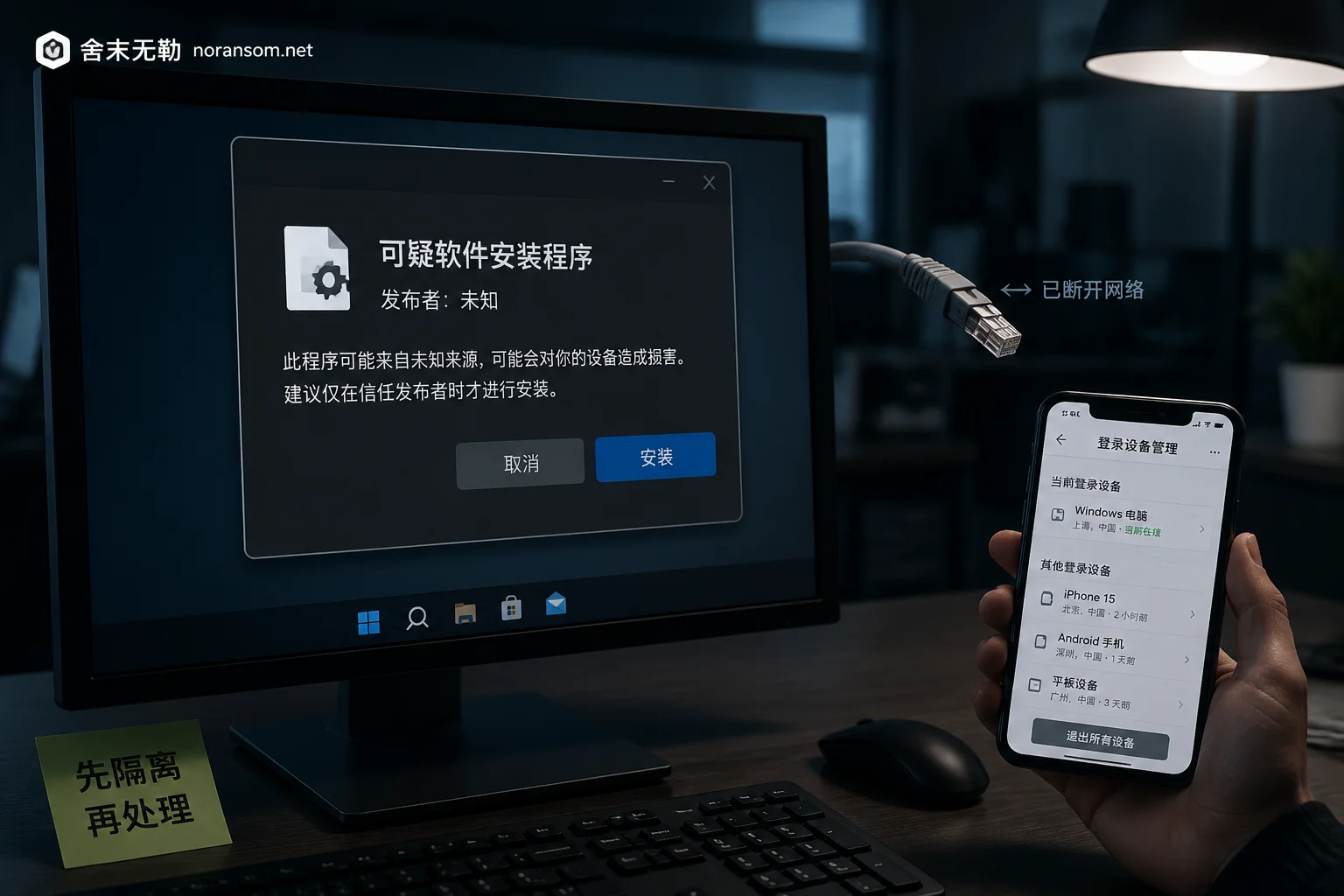
- Disconnect this computer from the network. Unplug the Ethernet cable, turn off Wi-Fi, disconnect the mobile hotspot. Don't just close the browser, and don't just exit that software.
- Use a device that has never touched this installer (a phone with mobile data is safest) to handle your accounts. Log into the security settings of WeChat, WeCom, DingTalk, QQ, email, check the list of logged-in devices, force this computer's login session offline, and kick out any unrecognized devices.
- If this computer is involved in finance, reimbursement, or contract approval, immediately notify the cashier, finance manager, and colleagues you are working with by phone or in person: suspend all transfers that have not been double-checked.
Only after these three things should you consider antivirus scanning. If the order is reversed, the significance of antivirus scanning is greatly reduced.
Why you can't change passwords on this computer
This is the most common and most regrettable action: you notice something wrong and immediately open various websites on the same computer to change passwords.
The problem is that these Trojans, distributed through search result luring, typically have keylogging, screen monitoring, and clipboard reading capabilities. The new password you type on the compromised host is immediately captured by the attacker; you then think you're safe and let your guard down.
More troublesome are sessions. Many office software and web platforms retain session credentials after login, rather than verifying the password every time. Even if you change the password, if you don't kick the old login session offline, the attacker may still be able to use the existing session to continue speaking as you, view chat history, and check contacts. So "changing passwords" and "kicking sessions" are two separate actions, both must be done from another trusted device, and it's safer to kick sessions first.
Accounts that need priority handling, roughly in order: office instant messaging (WeChat/WeCom/DingTalk), corporate email, online banking and financial systems, bastion hosts or remote operations accounts, and any other services where you used the same password.
Review financial risks separately, don't wait until the investigation is done
A large portion of remote-access Trojans that come from fake office software are not after encrypting your files but after money. Typical publicly warned tactics include: reading chat history to impersonate a leader and create new group chats to issue instructions, silently altering the payment account number you copy, and watching online banking and approval processes waiting for you to act.
So before you figure out what you're infected with, you can do these things first:
- Verify today's and recent transfers, payment approvals, and contract changes one by one by phone or in person, especially "temporarily changed receiving account" or "leader asked to pay first" cases.
- Unplug online banking USB keys and dongles from the computer; don't leave them plugged in during troubleshooting.
- Put pending approval documents on hold; before resuming, re-verify the other party's account through independent channels.
- If an abnormal transfer has already occurred, immediately call the bank's customer service to request a stop payment, and report to the police. The earlier, the better the chance of interception, but recovery is not guaranteed; don't delay because you think "it might not be recoverable." Keep transfer receipts, chat logs, and approval screenshots intact.
How to determine if you are actually infected
Many people get stuck here: a full antivirus scan says "no threats found," so was it a false alarm?
You can't judge that way. In the past year or two, these Trojans spread through search luring commonly use legitimate digitally signed programs to sideload malicious DLLs (known as "white plus black"), pad file sizes to evade scanning, or use MSI packaging or temporary service registration to bypass static detection. The antivirus interface showing safe only means this sample currently isn't caught by static signatures.
More reliable judgment comes from behavioral clues you can check yourself while disconnected:
- Startup items and scheduled tasks: Check registry Run keys and Task Scheduler for recently added entries pointing to AppData, ProgramData, Temp, etc.
- Process tree: Are there normal programs (e.g., a signed small tool) inexplicably launching cmd, powershell, or unknown child processes?
- Installation directory: In the directory of the software you installed, are there DLLs, bat, vbs files unrelated to that software?
- Network behavior: Before disconnecting, did you notice unknown connections? In a corporate environment, ask the network admin to check this machine's outbound logs and DNS requests.
- Antivirus logs: Are there records of "blocked/removed" that keep reappearing? Reappearance usually means persistence hasn't been fully cleaned.
No single clue alone can definitively identify a specific family, but a combination is enough to treat it as "indeed infected." Conversely, absence of clues doesn't guarantee cleanliness, especially if the installer truly came from unofficial channels.
Preserve evidence before cleanup
This step takes only a few minutes, but it's essential for later tracing, reporting, and determining impact scope:
- Keep the original installer file (don't double-click, don't delete), copy it to a USB drive or separate directory, and preferably calculate its hash.
- Note which search result or domain you downloaded from, and screenshot browser download history and history records.
- Screenshot abnormal pop-ups, abnormal processes, and abnormal group chat invitations.
- Record the timeline: when downloaded, when installed, when anomalies started.
The police report and the national internet emergency center's special clue collection for such Trojans both require these materials. When submitting clues, provide the sample hash and download source domain; do not upload company databases, customer data, or production credentials to any public platform or unknown upload site.
Cleanup: uninstalling the software is basically useless
"Uninstalling" that software often just removes a shell. Remote-access Trojans typically drop components in hidden system directories, register multiple auto-start entries, and some release drivers; the uninstaller won't touch these.
There are roughly two viable paths:
One is to use offline specialized removal tools while disconnected. Suitable for cases where the impact is confirmed small, the machine has data that cannot be exported temporarily, or the scene needs to be preserved for forensics. After cleaning, don't reconnect to the network immediately; restart and check startup items and scheduled tasks again to confirm no resurgence. For repeated reappearance after cleaning, see troubleshooting ideas for SilverFox trojan reappearing after antivirus removal.
Two is to reinstall the system. For machines confirmed to have been remotely controlled and where you're unsure if cleanup was thorough, formatting the system drive and reinstalling is the most hassle-free choice. Before reinstalling, back up data files (documents, spreadsheets, images); do not back up any exe, bat, msi, shortcuts, or installers, otherwise you bring the backdoor back with you. After reinstallation, install all patches, replace all credentials, then reconnect to the network.
If this machine is a finance computer with online banking controls or business system clients, the criteria should be stricter—whether it can continue to be used and under what conditions a reinstall is mandatory, this article explains in more detail.
When to treat it as an incident rather than just one computer
If any of the following is true, stop treating it as "my computer got a virus":
- Colleagues or the same department gradually show similar symptoms, or someone receives suspicious files and group invitations sent by "you";
- This computer has logged into domain accounts, bastion hosts, financial systems, or server remote desktops;
- Abnormal file changes appear on shared drives or NAS;
- There are already signs of financial loss or customer information leakage.
In such cases, you need to simultaneously investigate lateral movement within the intranet, whether shared credentials have been used, and whether there are persistence points on servers; a single-machine reinstall won't solve it. For ongoing spread affecting multiple people and machines, it's advisable to follow the emergency response process as soon as possible; if the focus is remote control, account compromise, and financial risk, refer to the special handling instructions for SilverFox and remote-access Trojans.
A side note: if files also won't open
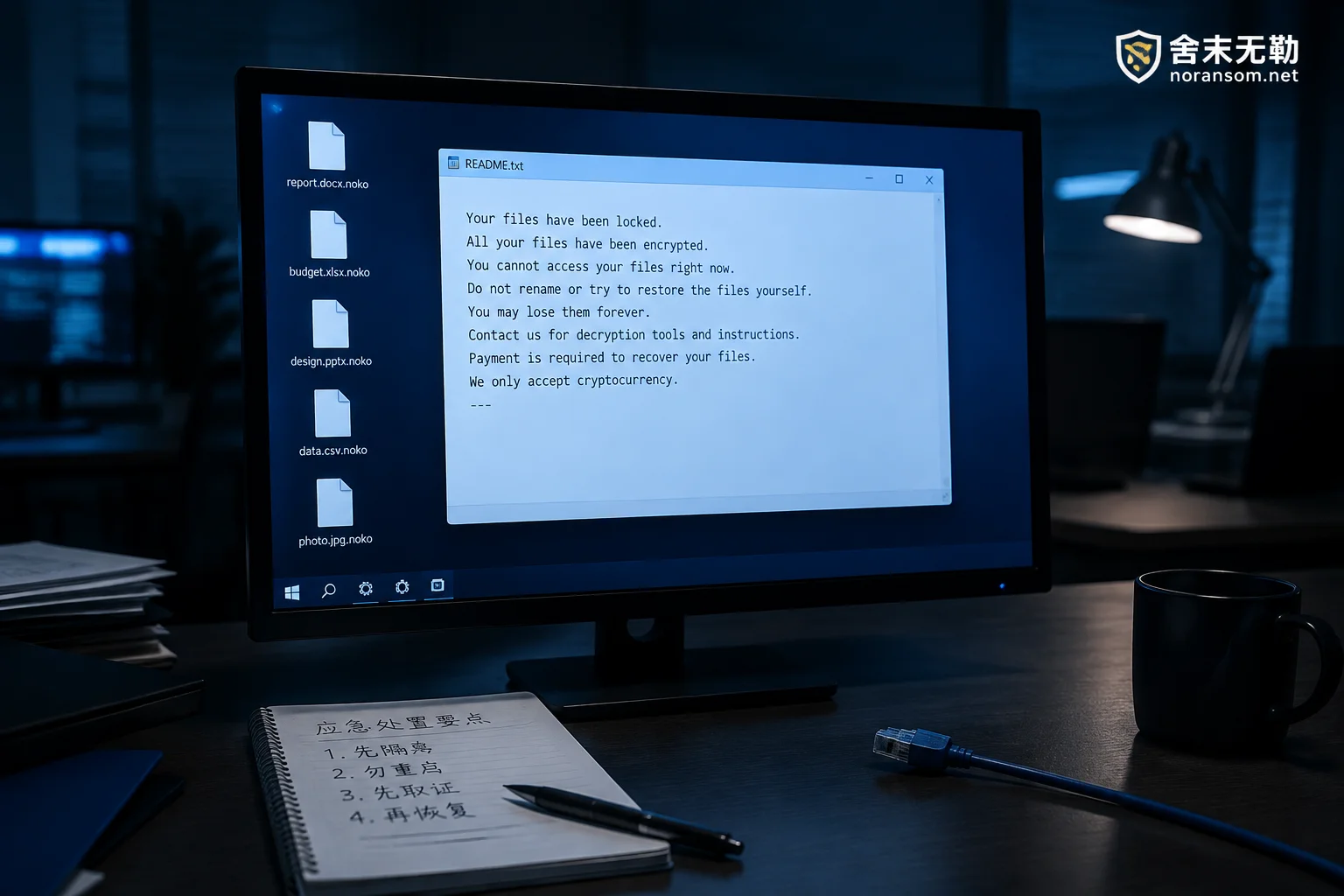
Sometimes users encounter two things at once—the computer is remotely controlled, and files are encrypted with strange extensions and won't open. These are two separate problems with different response paths: remote control requires addressing the host, accounts, and funds; file encryption requires addressing whether recovery is possible. Removing the virus does not mean the files can be restored. Recovery of encrypted files depends on the family version, availability of decryptors, backups, and residual copies, and must be assessed separately. You can start with how to determine if encrypted files can still be decrypted, and don't repeatedly try various "repair tools" on the only original file.
Final review in this order
Disconnect network → Use a trusted device to kick sessions and change passwords → Call finance to stop payments and verify recent transfers → Preserve installer and download clues → Check startup items and processes → Clean up or reinstall → Reconnect only after new credentials → Check if other machines are affected.
If you can't judge any step, or if financial and data losses have already occurred, don't stall by repeated scanning. Bring your recorded timeline, installer source, and anomaly screenshots, explain the situation through the incident help entry, first assess the scope of impact, then decide how to clean, whether to reinstall, and which accounts must all be reset.


Comments(0)