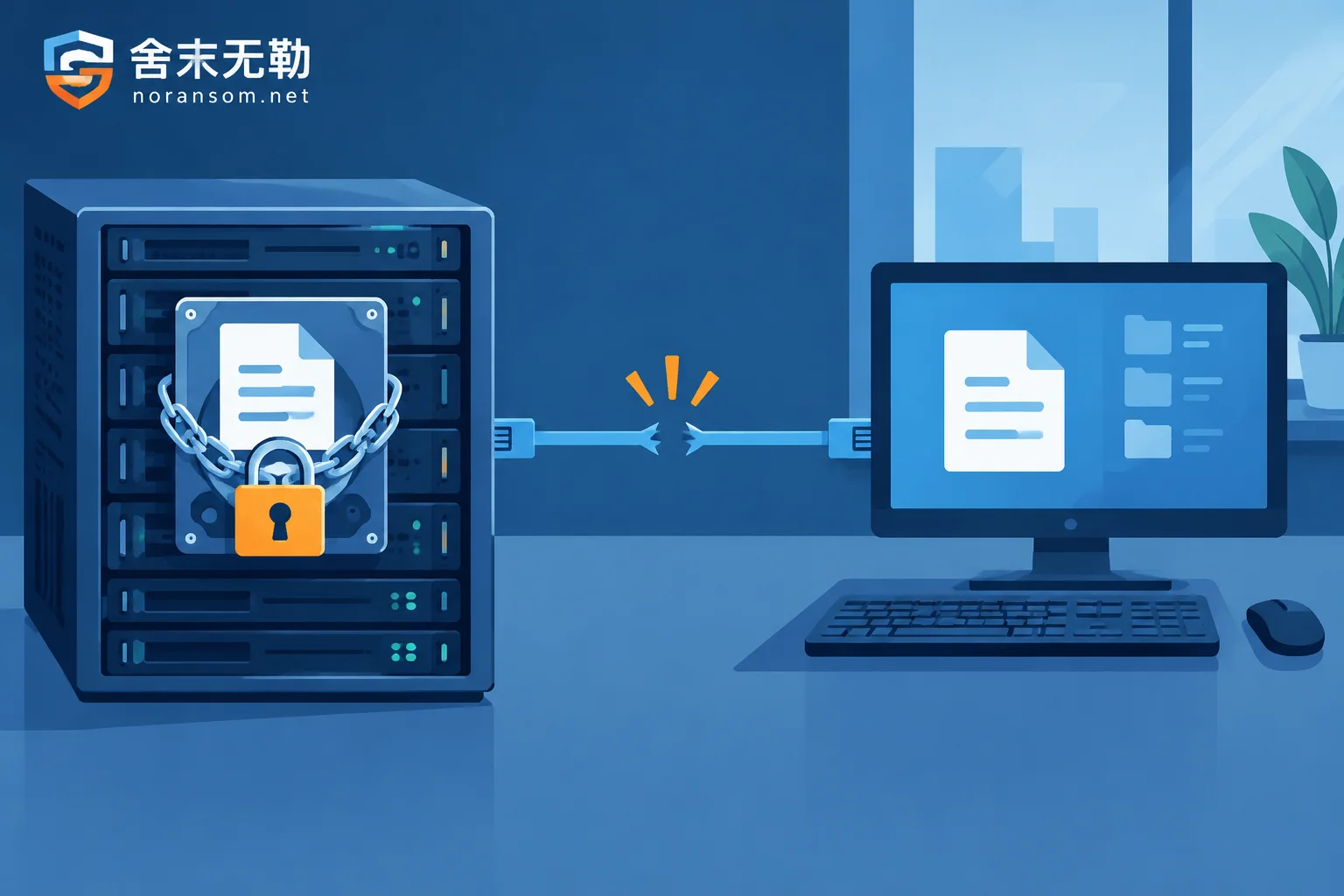
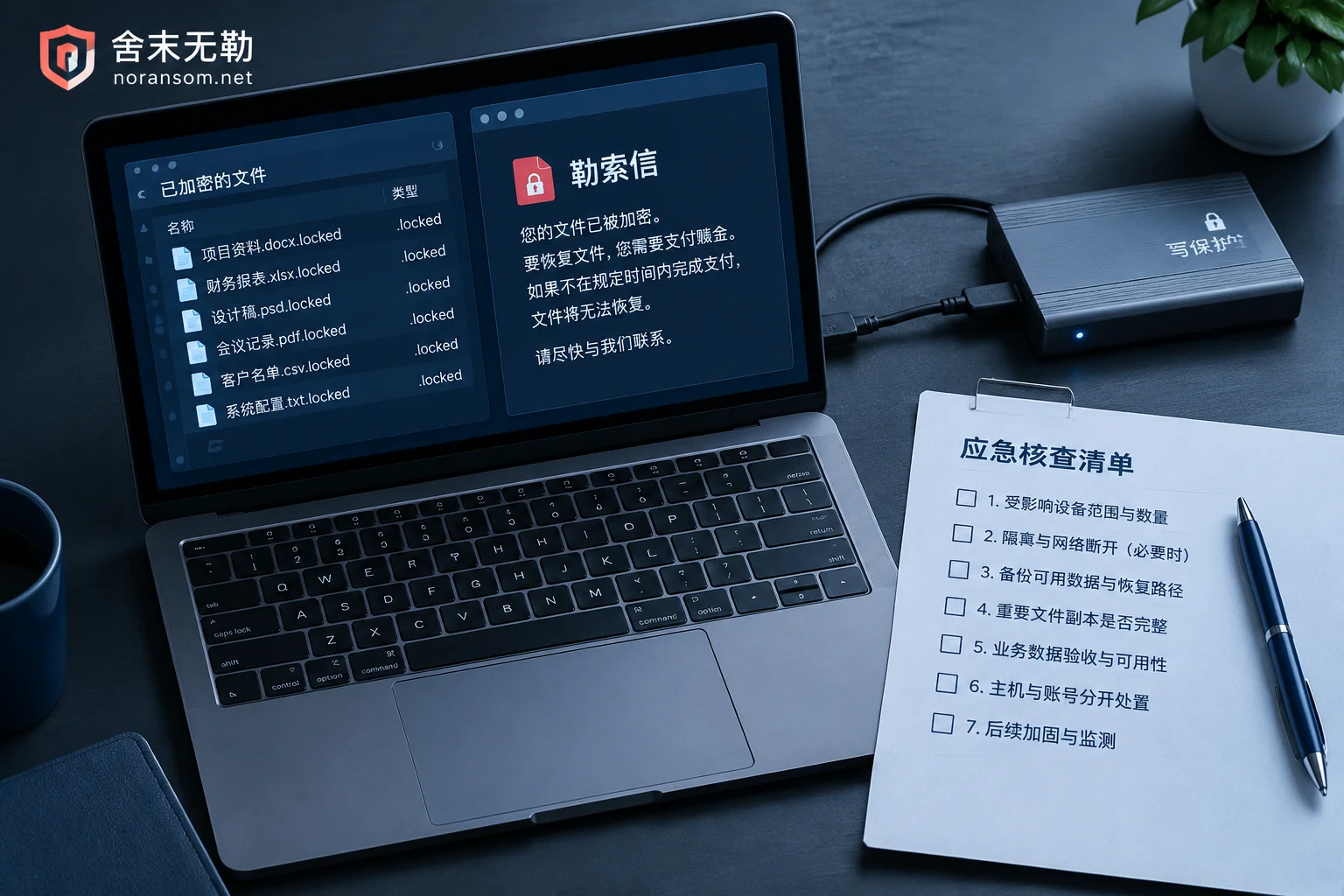
Files on the shared drive suddenly all have unfamiliar extensions, and a README or HOW_TO_DECRYPT note appears in the directory—at this point, the first thing to do is not to run antivirus or search for decryption tools, but to cut off the write channel: stop the SMB/network sharing service on the file server or NAS, or simply unplug its network cable, and forcibly disconnect active sessions. While encryption is still running, every extra minute means another batch of files is overwritten, taking usable historical versions with them.
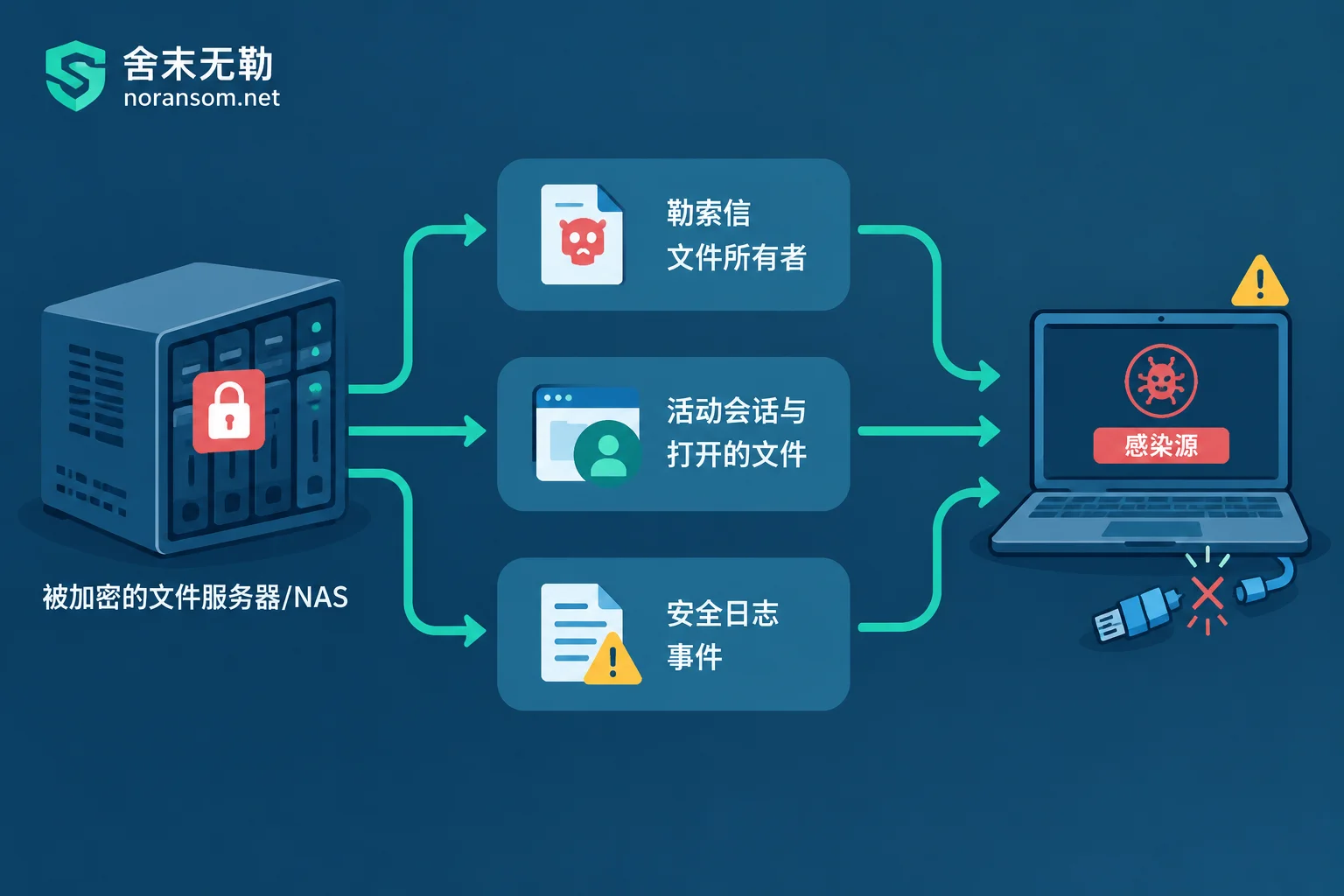
Another judgment that is often reversed: a shared folder being encrypted usually does not mean the server or NAS itself is infected. In most cases, the virus runs on an ordinary office computer on the LAN and, using the write permissions of the currently logged-in user to a mapped drive (like Z:) or \\服务器IP\共享名, reads files, encrypts them, renames them, and writes them back. The storage device passively receives writes. So repeatedly scanning the server often finds nothing, while the source machine continues encrypting.
Whether to Shut Down the Server Depends on Three Things
There is no standard answer of "never shut down" or "immediately power off"; judge based on the situation:
- Can stopping sharing alone stop the encryption? If so, prioritize stopping the service and disconnecting the network while keeping the system running—this way, connection information in memory, session records, and open files remain, which helps locate the source.
- Is encryption still continuing? If files are still gaining extensions after stopping the sharing service, the malicious program may be running on this machine, and powering off to stop the bleeding takes priority over preserving the running state.
- What is running on this machine? If databases, ERP instances, or virtual machines are running, a forced power-off may turn otherwise intact data files into an inconsistent state; try to stop services normally first.
Find Out Which Computer Is Encrypting
Without isolating the source, recovered data will be encrypted again. Three methods, from fastest to slowest:
1. Check the owner of the ransom note. In the encrypted directory, find the newly generated ransom note file, right-click "Properties → Security → Advanced," and view the "Owner." This account is usually the domain or shared account that initiated the encrypted writes, and from it you can identify the specific person and machine. This is the fastest method and does not depend on any pre-enabled logging.
2. See who is currently connected. On a Windows file server, open "Computer Management → Shared Folders" and check "Sessions" and "Open Files," or simply run net session; the IP frequently opening many files is likely the culprit. NAS devices generally have the same information on the connections/logs page in their control panel. Note that this step must be captured before or at the moment of disconnecting the network; once disconnected, it is no longer visible.
3. Check security logs. If audit policies were enabled in advance, look for Event IDs 5145 (Detailed File Share) and 4663 (An attempt was made to access an object), filtering by the encryption timeframe for source IPs and accounts with high-frequency write operations. In environments without audit policies, these events are empty; do not waste time on them and return to the first two methods.
Once located, unplug the network cable or disable the network adapter on that computer—generally keep it powered on and do not rush to reinstall or run a full scan; it is the most important scene for later family identification and tracing.
Snapshots and Backups: Usually the Lowest-Cost Path, but Easily Destroyed by Yourself
After isolating the source, protect copies first, then investigate whether decryption is possible:
- Immediately pause automatic backup jobs. If a backup job runs again after encryption, it may overwrite the last healthy version in the repository or roll it out of the retention period.
- Check storage device-level snapshots. NAS snapshots (Synology, QNAP, etc.), Btrfs/ZFS snapshots, and Windows Volume Shadow Copies (VSS) fall into this category. The key point: ordinary endpoints via SMB only have file-level read/write permissions and generally cannot delete read-only snapshots behind the NAS, so even if the shared directory is thoroughly encrypted, snapshots are often intact. This is the most worthwhile recovery path to check first in shared drive scenarios.
- Volume Shadow Copies need separate judgment. If the attacker directly gained control of the server (rather than remote writes from an endpoint), the server's local Volume Shadow Copies are likely already deleted; do not treat them as a guaranteed fallback.
- Confirm the source is disconnected before rolling back, otherwise the newly recovered files will be encrypted again.
Determine Whether the Server Itself Was Compromised
This step determines the scope of follow-up handling; a few points can roughly distinguish:
- Are non-shared volumes and system disks (e.g., C: drive, data volumes not shared) intact? If only the shared directory is damaged, it is more like remote writes from an endpoint; if files on the system disk are also encrypted, the malicious program ran on this machine.
- Are there extra accounts, abnormal processes, new startup items, or scheduled tasks on the server?
- Are there unexplained remote logins in the login logs, especially RDP exposed to the internet with weak passwords?
If the server was directly compromised, it is not just one machine: administrator credentials may have leaked, and any place where the same set of passwords is reused on other machines on the LAN must be treated as affected; domain controllers and other servers must also be investigated.
Forensics and Assessment: Don't Experiment on the Only Original
Materials to preserve: the original ransom note (including the ID and contact information inside), several encrypted sample files, the extensions and naming patterns of encrypted files, any unencrypted old version of the same file if available (very valuable for determining the encryption method), system logs from the server and source host, and the approximate time when anomalies were discovered.
A few things that will destroy data—do not do them:
- Format affected volumes or reinstall the storage server's operating system;
- Write large amounts of new data to the damaged disk (including installing recovery software on the same disk);
- Repeatedly run unknown "decryption tools" or repair tools on the only copy—many such programs overwrite in place, and there is no second chance after one failure. If you must try, do so only on an isolated copy.
Also note: a single extension or a name reported by antivirus is not enough to determine the family and version. The same extension has been used by multiple families, and public decryptors only cover some versions of some families. When a tool says "unsupported file," the cause may be a wrong version, a modified file header, or simply a misidentified family; for details, see Troubleshooting ideas when a decryption tool says unsupported.
What Recovery Paths Exist
From highest to lowest feasibility, roughly: storage-layer snapshot rollback → offline or offsite backup restore → extraction of remnants and fragments not fully encrypted (many ransomware families only encrypt the first few bytes of large files) → decryption when a matching decryptor exists → reconstruction at the business system level (e.g., using exported reports, upstream/downstream documents, copies from other nodes to piece together accounting data).
These are different paths, not a single process: removing the malware will not bring files back by itself, and being able to decrypt does not mean backups are useless. When all backups are encrypted and there is truly no usable snapshot, it is still worth mapping the scope—offline external drives, old machines not plugged in for a long time, historical versions in cloud sync directories, and local copies kept by employees all count. In such cases, the remaining possibilities are detailed in Other recovery paths when there is no free decryption tool.
When Professional Assessment Is Needed
In the following situations, the risk of continuing to explore on your own usually outweighs the benefits:
- Multiple machines and multiple shared directories are encrypted simultaneously, or encryption is still spreading and the source cannot be found;
- The shared drive contains database files, ERP instances, or virtual machine disks, and file-level recovery actions directly affect whether business can resume;
- Snapshots and backups are also gone, leaving only the damaged original disk;
- The server is suspected of being directly compromised, involving credential leakage and lateral movement within the network.
For scenarios that are still spreading and affecting multiple people and machines, you can directly follow Emergency response for ransomware incidents; if encryption has stopped and you want to first understand what family it is and whether these files still have any chance of recovery, then first perform Family identification and recoverability assessment, and decide which recovery path to take based on the assessment results. When submitting materials, provide only the ransom note, encrypted samples, and logs; do not upload databases, customer data, or production passwords to public channels.
After Recovery, Change the Permissions
The reason a single infected endpoint can wipe out the entire shared drive lies in permissions: the daily account has full control over the entire shared directory, and the backup directory is mounted under the same set of credentials. After recovery, at least do three things—split shared directories by department and business and tighten write permissions, separate backup accounts from daily domain accounts and do not log in to them on endpoints, and keep an offline or immutable copy. If these three are done, the next time someone opens a phishing attachment, the damage will not be the entire file server.


Comments(0)