If you just opened an attachment that looked like an "invoice", "statement", or "payment receipt", and now suspect something is wrong with your machine, follow the steps below in order. Do not skip the first three steps, and do not start by running a virus scan.
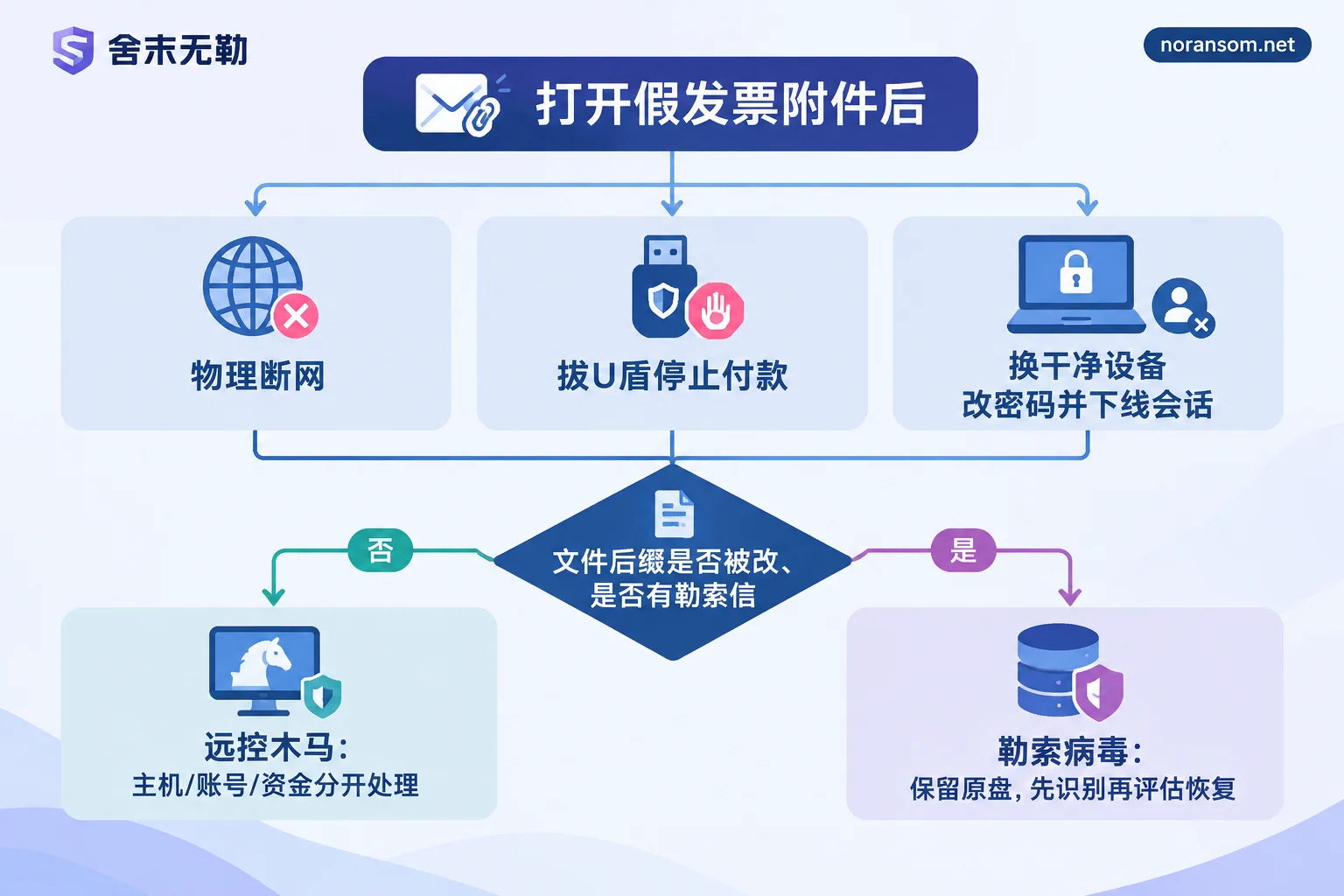
First Ten Minutes: Disconnect Network, Stop Payments, Change Passwords on Another Device
The first thing is to physically disconnect the network. Unplug the Ethernet cable, turn off Wi-Fi, and if necessary remove the wireless network card. The goal is to cut off the malicious program from its command-and-control server so it cannot receive instructions or send out data, and to block lateral movement to other computers on the internal network. Simply closing the browser or logging out of chat apps is not enough.
The second thing is to shut down the money channels. Remove the online banking USB key and digital certificate. Do not log into online banking, financial software (Kingdee, Yonyou, etc.), or tax systems on this machine again. Do not perform any approvals or payments. For phishing targeting finance roles, what attackers want is those few minutes of screen monitoring and remote operation.
The third thing is to switch devices and change passwords. Use your phone or another unaffected computer to change the passwords for your work email, WeChat, QQ, DingTalk, financial systems, and internal network accounts. In each service's security center, force all logged-in devices to log out. Never change passwords on the infected machine—that is like reading the new password directly to the attacker. Changing passwords without terminating sessions is also not enough; a residual login state can allow the attacker to continue impersonating you and sending payment instructions in group chats.
Also do one more thing: notify IT and the finance lead by phone or in person, and warn colleagues to be wary of any recent "leader" requests for urgent transfers. The same phishing emails are usually sent in bulk; if you received one, others likely did too.
Next, Determine: Remote Control or Files Encrypted
The response to these two outcomes is completely different, and many people fail by conflating them. Look at these direct signs:
- Have document or image file extensions been changed to unfamiliar strings, and does double-clicking prompt that the file cannot be opened? Are there new txt or html ransom notes on the desktop or in folders, and has the wallpaper been changed? If so, ransomware is active.
- Files open normally, but the mouse moves by itself, the screen flashes, antivirus is disabled, unknown startup programs appear, or chat apps send messages inexplicably—this looks more like a remote access trojan.
- It is also common for both to be present: remote control first, then an encryption module delivered later.
If it was just "a black window flashed after opening the attachment and then nothing else", do not assume you are safe. These trojans typically lurk quietly and act when finance staff log into systems.
To determine whether files are truly encrypted and which type it is, you can refer to the checkpoints in How to tell if files with unfamiliar extensions are ransomware.
If It Is a Remote Access Trojan: Handle Host, Accounts, and Funds as Three Separate Lines
The National Computer Virus Emergency Response Center and the National Internet Emergency Center have clearly stated in their warnings about "SilverFox"-type trojans: these samples have many variants and often use legitimate programs to load malicious DLLs (white plus black), inject into system processes, and add hidden scheduled tasks and registry startup entries to bypass defenses. Therefore, "antivirus scan showed no threat" or "prompted as cleaned" cannot be taken as proof that the system is clean. What you need to check is whether persistence items and outbound communication traces are still present.
In practice, separate the three things:
- Host: If you cannot clean it thoroughly, do not force it. For computers that handle funds, such as finance and cashier machines, reinstalling the system and restoring data from trusted media is usually simpler and more reliable than repeated scanning and cleaning. Before reinstalling, copy out needed files, but do not copy executable files or scripts.
- Accounts: You already changed passwords and terminated sessions in step three above, but also check whether the email has auto-forwarding rules set and whether chat apps have unfamiliar logged-in devices.
- Other machines on the internal network: Check whether other recipients of the same batch of emails also opened them.
If symptoms return after cleaning, refer to What to do if SilverFox trojan reappears after antivirus removal to first distinguish whether persistence was not fully removed or the internal network was reinfected. For cases involving multiple people and machines, or confirmed outbound connections, see Special handling instructions for SilverFox and remote access trojans to decide whether external investigation is needed.
If an abnormal transfer has already occurred, immediately call your bank's customer service to report the card and stop payment, and call 110 or contact the local cybersecurity department to file a report. Preserve the original phishing email, chat records, attachment file names and save paths, and transfer receipts—these are the basis for follow-up handling. Whether funds can be recovered depends on timing and the recipient account status; no one should guarantee you anything on this matter.
If Files Are Already Encrypted: Do Not Mess with the Only Original
There are several hard rules:
- Do not repeatedly run unknown "decryption patches" or "repair tools" on the only original data. Many such tools rewrite files a second time and destroy remnants that could still be saved.
- Do not rush to format, reinstall, or rebuild the disk. The original disk itself is evidence and raw material for recovery.
- Keep the complete ransom note, several encrypted sample files, and any unencrypted originals with the same name that you can find (for comparison).
Regarding whether to shut down, it depends: if encryption is still ongoing and you cannot reliably isolate it, then cutting power quickly to stop the damage is more important; if encryption has stopped and you need to preserve memory traces, keep the machine on but physically disconnected from the network. An ordinary office machine generally will not continue encrypting after being disconnected. If it still encrypts after disconnection, see What to do if files are still being encrypted after disconnecting from the network.
Whether recovery is possible depends on several specific conditions, not luck: whether there are offline or offsite backups, whether volume shadow copies were deleted, whether cloud drives or network drives retain historical versions, whether the database has usable logs or unencrypted remnants, and whether there is a publicly available decryptor for that family version. Not all families and variants can be decrypted. Identify first, then discuss recovery; doing it in reverse often wastes time. Start with Family identification and recoverability assessment.
When to Seek External Emergency Response
In the following situations, the cost of continuing to figure it out yourself is usually higher than having someone assess it:
- More than one machine is affected, or servers, financial ledgers, virtual machines, or shared drives are also infected;
- After cleaning, there are still abnormal outbound connections or the trojan reappears;
- The encrypted data is the only copy, with no usable backup;
- Financial loss has already occurred and incident materials need to be organized.
Scenarios involving multiple people and machines and still spreading fall under emergency response. The order is to first stop the damage and isolate, then assess what can be recovered, and finally discuss specific solutions. When you need to submit incident information, provide the necessary materials as required on the contact page—do not send database files, customer data, production passwords, or malicious samples to public comment sections or arbitrary upload sites.
Don't Fall into the Same Trap Next Time
A real invoice will not arrive as an exe, scr, bat, shortcut (lnk), or encrypted archive. When you receive attachments like "invoice", "contract", or "penalty notice", first turn on file extension display and check the real extension. If the sender claims to be an acquaintance or leader, verify through another channel (make a phone call). Keep finance computers separate from machines used for general web browsing and email as much as possible. These are not complicated, but they are much cheaper than recovery afterward.


Comments(0)